

This guide covers multi-currency pricing — different currencies for different regions. If you need different prices within the same currency across regions (e.g., separate EUR prices for Germany, France, and Spain), see Set Up Multi-Region Pricing instead.
Prerequisites
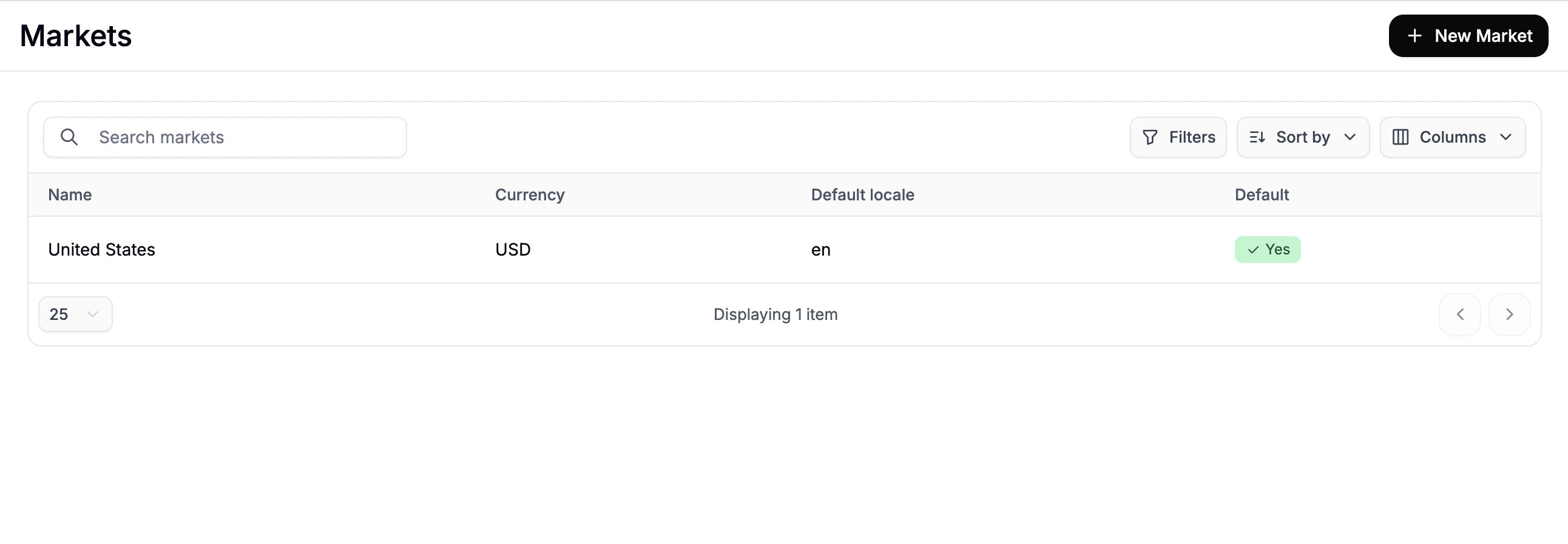
Before you start, you should have at least one active market already configured — typically your home market. In this example, a US market with USD is already set up.1. Create a Market for the New Currency
The Market must be created first. Until a currency is assigned to a Market, you will not be able to set prices for other currencies (in this case, EUR). To create a Market, navigate to Settings → Markets in the admin dashboard.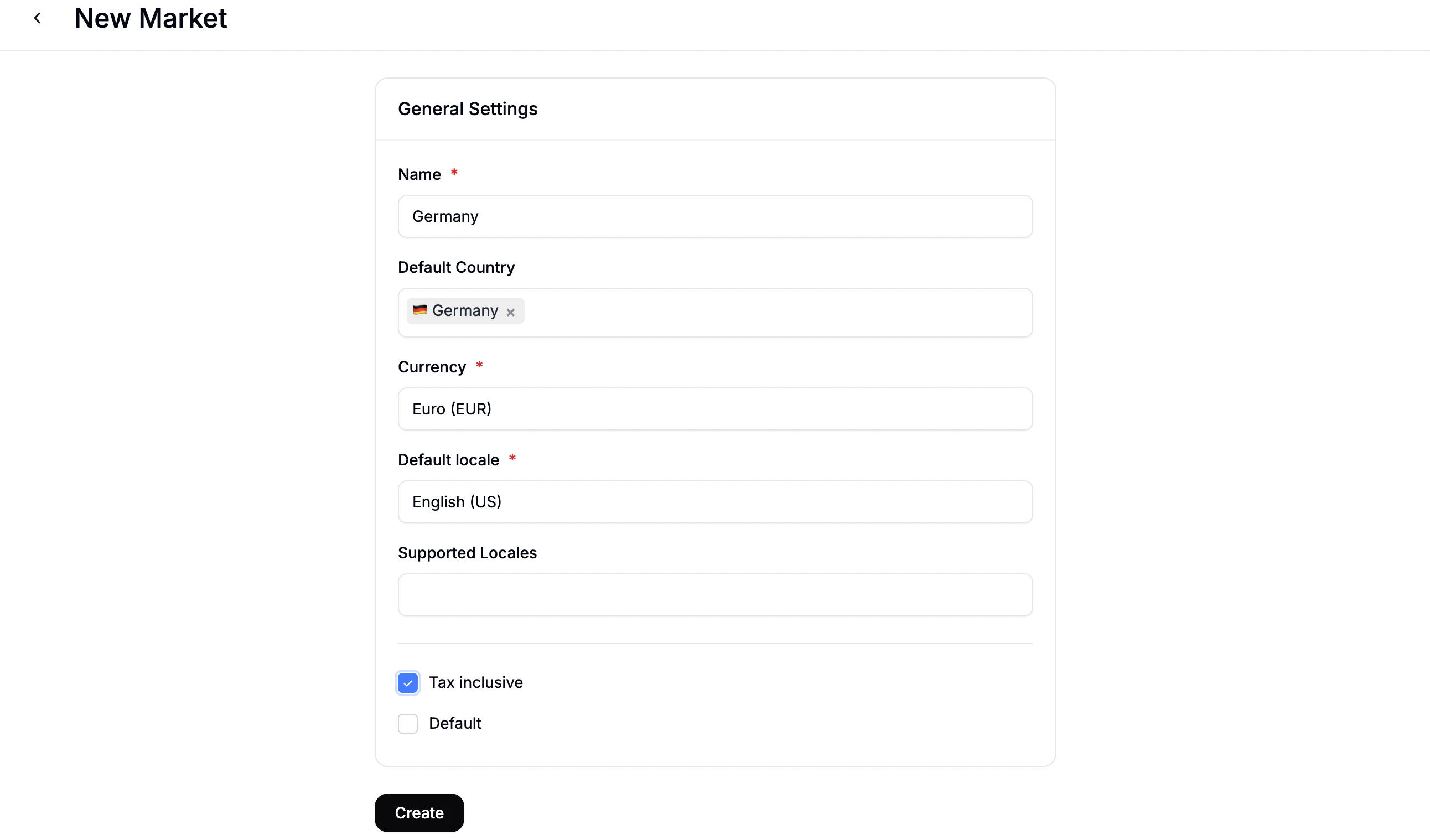
- Name —
Germany - Default Country —
Germany - Currency —
EUR - Default Locale —
DEfor German, orENif your storefront runs in English - Tax Inclusive — check this if prices should display with VAT included, which is standard practice in EU markets
- Default — leave unchecked, since the US market is already the default
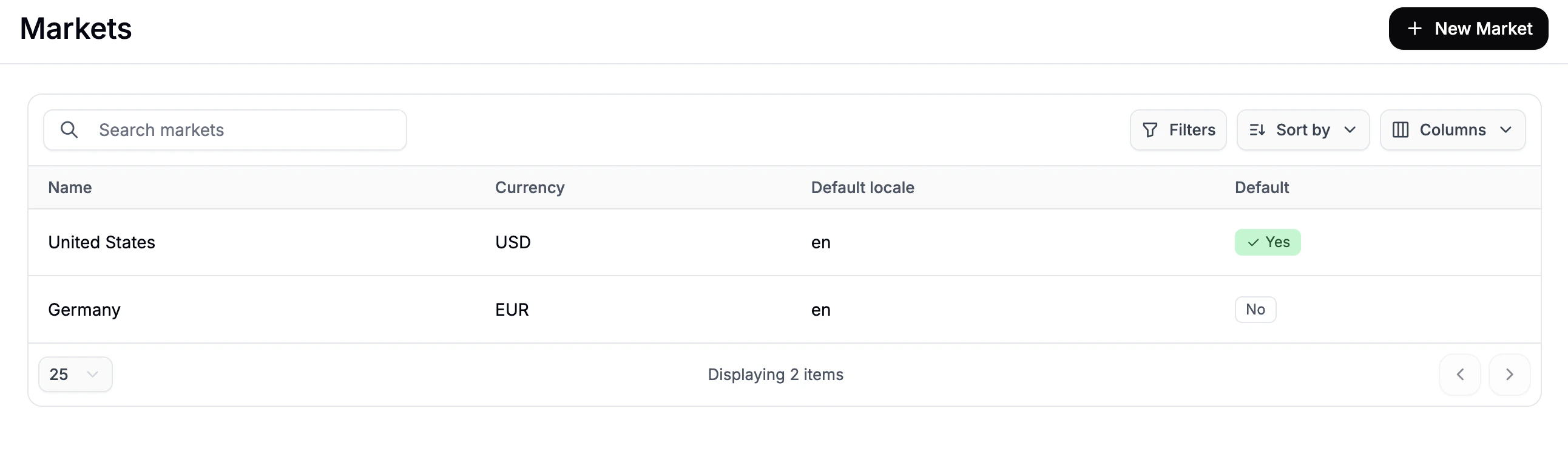
2. Set EUR Prices on Your Products
With the EUR market in place, the currency switcher is now available in the product editor. You’ll need to add a EUR price to every product you want to sell in Germany — any product without a EUR price will not be shown to customers browsing in that market. To set the EUR prices, navigate to Products and open the product you want to update.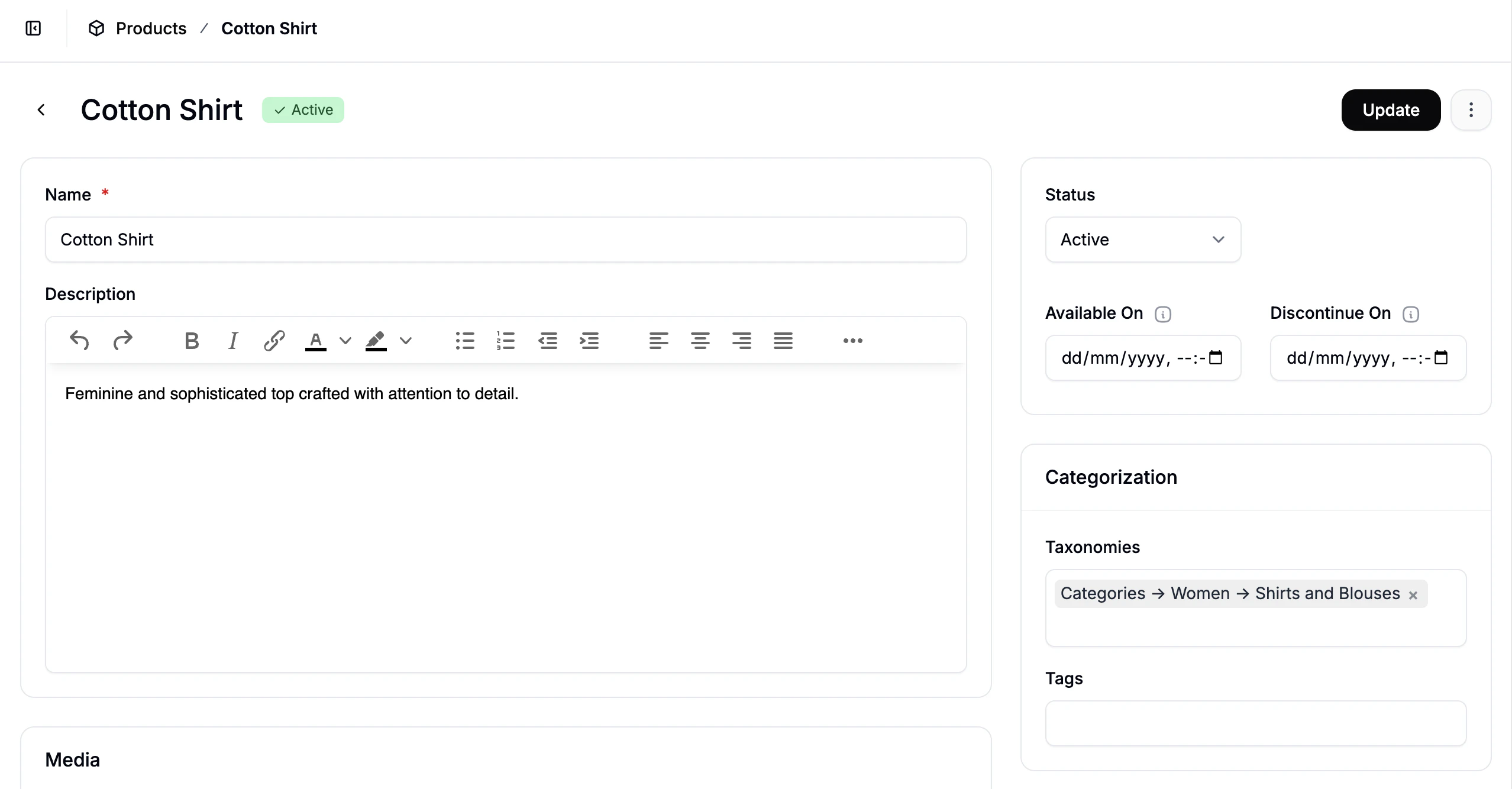
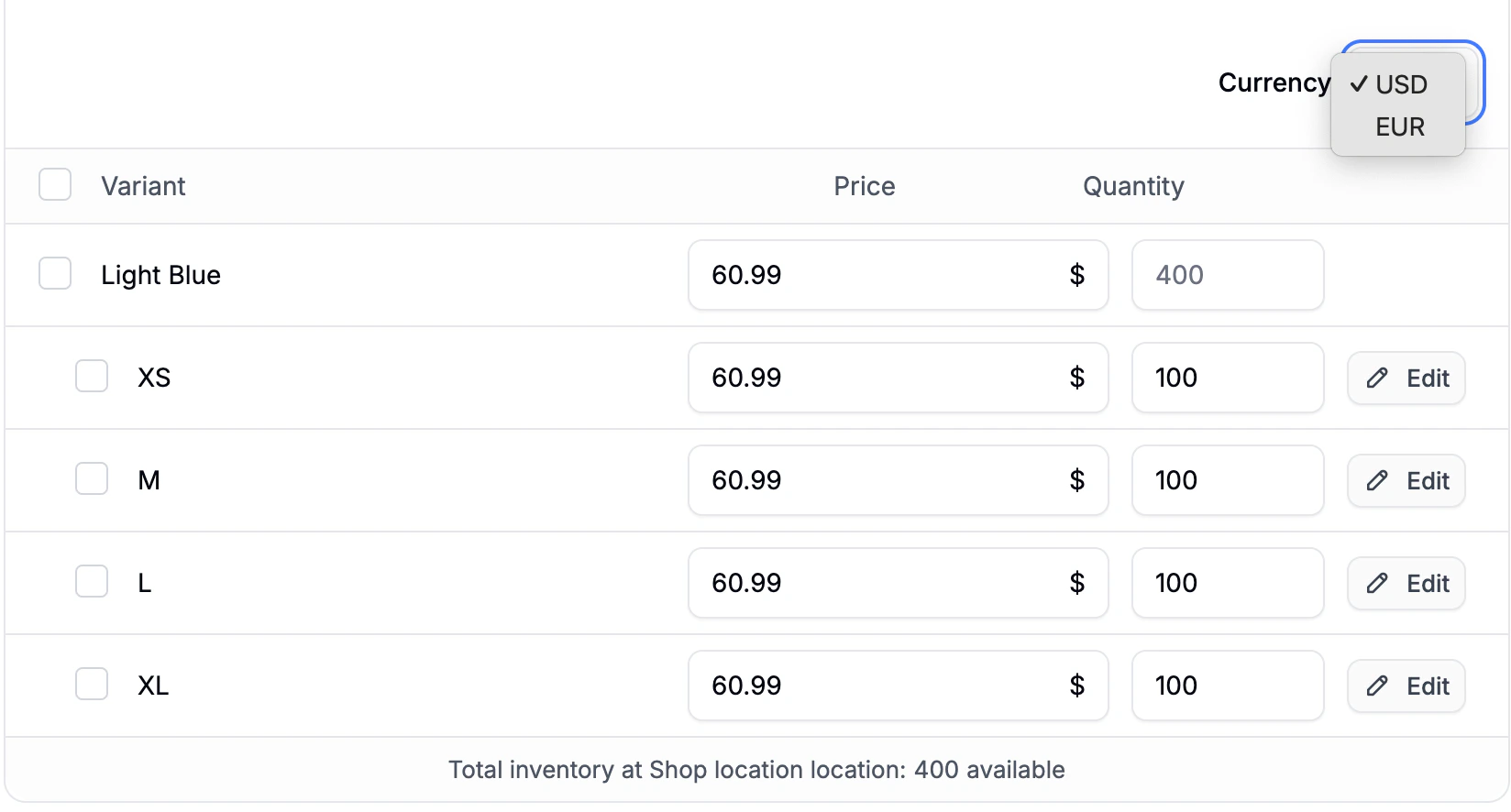
89.00 for a product priced at 99.00 USD) and click Update to save.
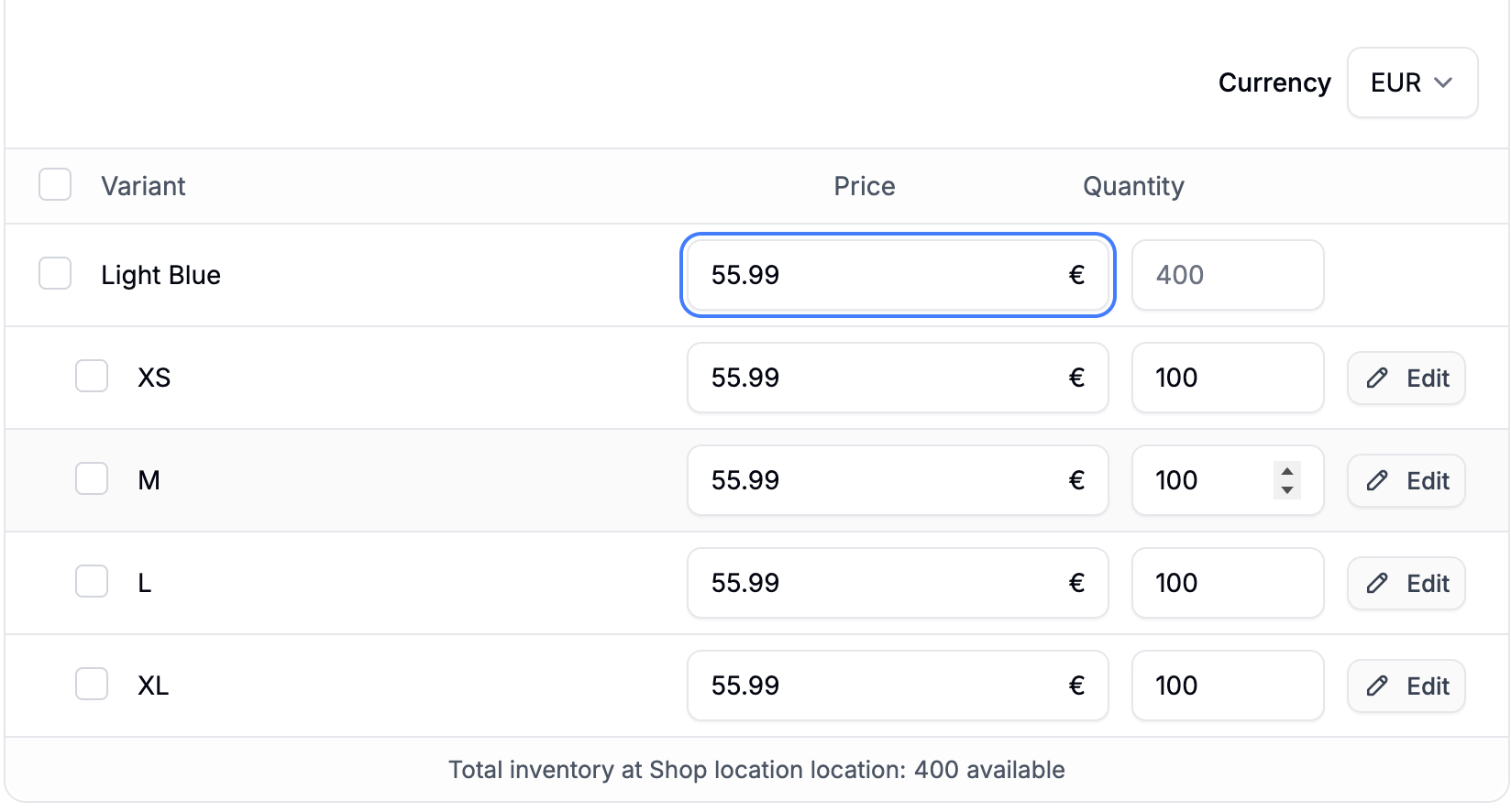
Multi-currency prices can also be set via CSV import. See the Product Import File Template for reference.
3. Verify on the Storefront
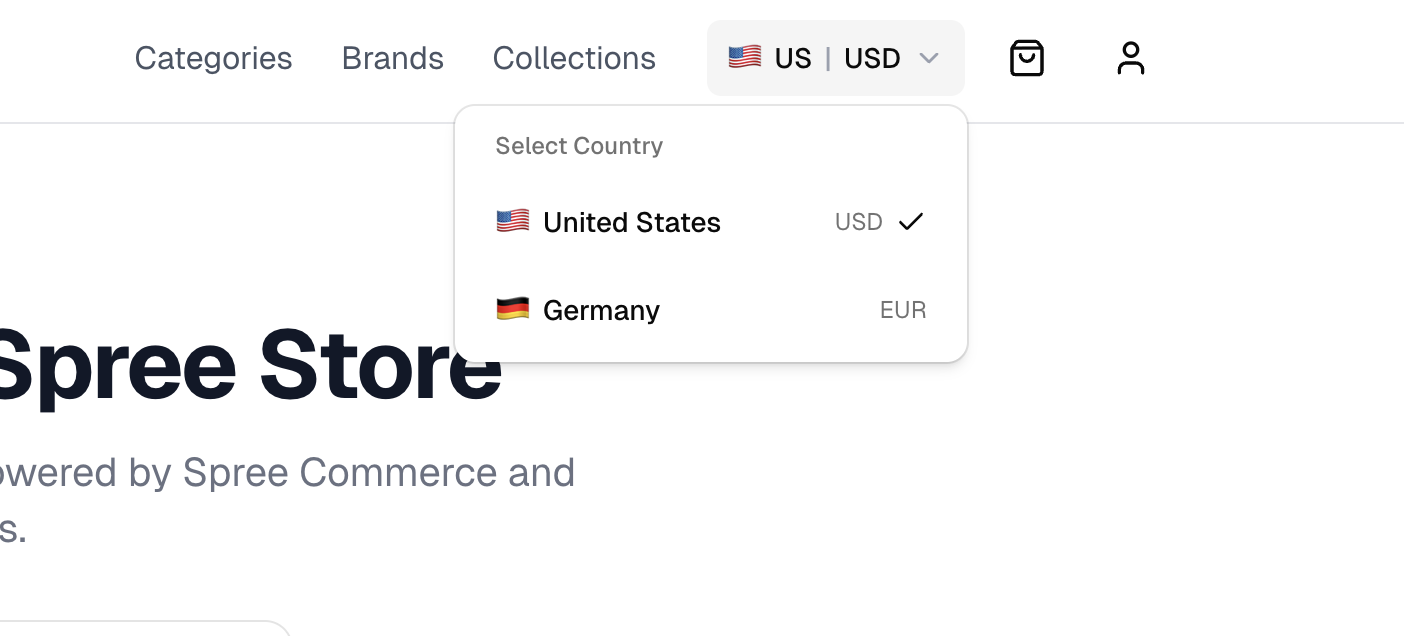
Once your market and product prices are set up, verify the setup by visiting your storefront.- Look for the market switcher in your storefront’s navigation. If you’re using the Spree Next.js Storefront, this appears in the navigation bar.
- Switch to Germany / EUR
- Confirm that product prices are now displayed in EUR
Next Steps
- Set Up Multi-Region Pricing — charge different prices within the same currency for different markets
- Markets — full reference for configuring Markets
- Price Lists — reference for setting up price overrides and rules