

Price Lists vs. Promotions
Both tools can reduce what a customer pays, but they work differently and suit different situations. Promotions apply a discount at checkout — a percentage off the order total, a fixed amount off, free shipping, or a coupon code. They’re well suited to straightforward sitewide offers (e.g., 15% off everything with a code) or one-time deals. However, if you want to apply different discounts to different products — say, 20% off one category, 10% off another, 15% off one set of products, 25% off another set — you’d need a separate promotion for each variation. Promotions also don’t change the price shown on the product page; the discount appears at checkout. Price Lists let you set the actual sale price for each product individually. One price list can cover your entire catalog — add as many products as you need and set each one’s sale price directly. The discounted price shows on the product page, not just at checkout, and the list activates and deactivates automatically on schedule. This makes Price Lists the better tool for sitewide or catalog-wide sales where you want the reduced price to be visible from the moment a customer lands on a product.For a simple sitewide percentage discount with a code, promotions may be quicker to set up. Price Lists shine when you need scale, market-specific rates, or per-product control over the discounted price.
Prerequisites
Before you start, make sure:- Your products are set up with base prices in both USD and EUR
- You have a United States market and an EU (or equivalent European) market configured. See Settings → Markets for setup instructions.
- You’re familiar with how Price Lists work. See Price Lists for a full reference.
1. Create the US Black Friday Price List
Navigate to Products → Price Lists in the admin dashboard and click New Price List.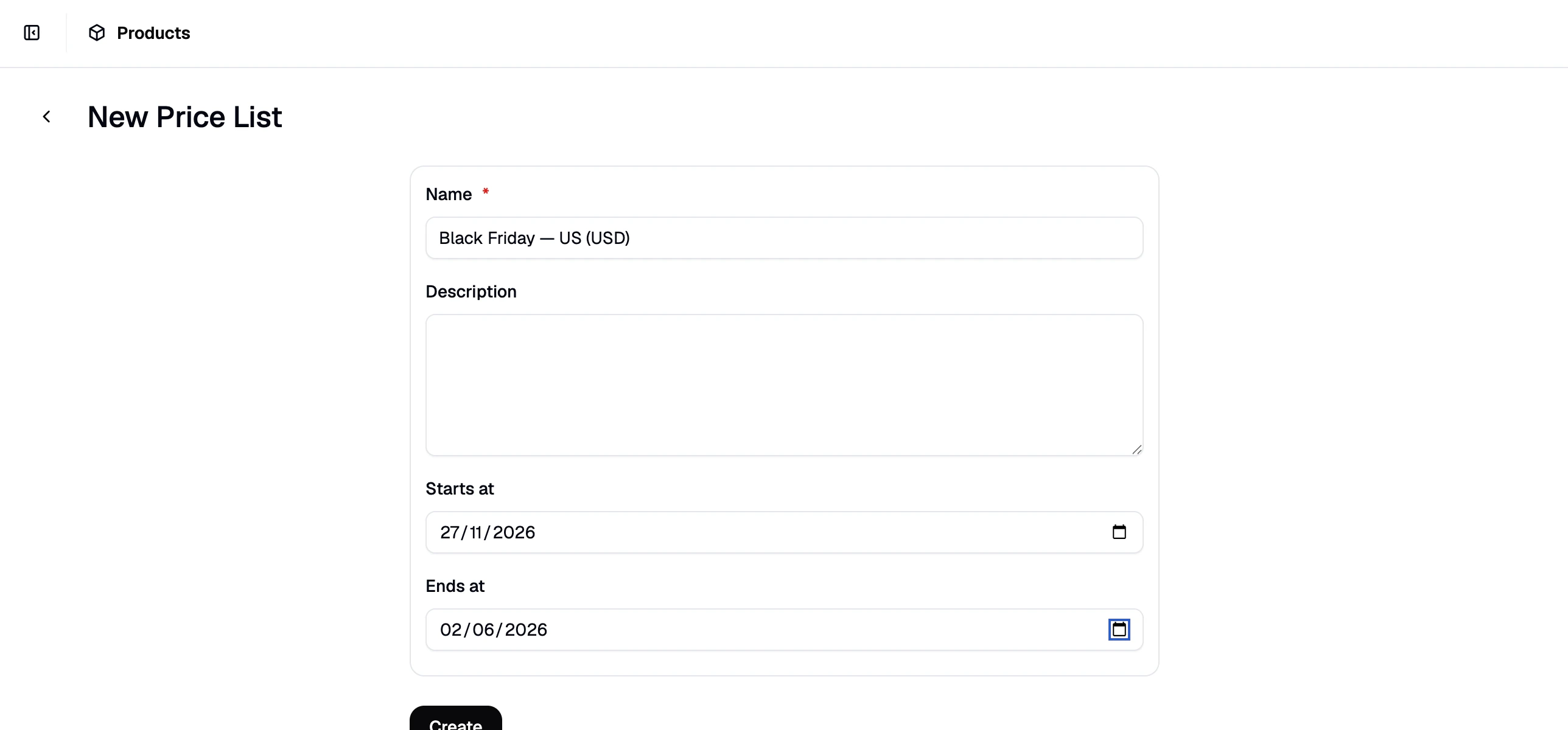
- Name — e.g.,
Black Friday — US (USD) - Description — optional (e.g.,
Sale discounts for US customers, Black Friday weekend) - Start Date — set to the date and time your sale begins (e.g., Friday, 00:00)
- End Date — set to the date and time your sale ends (e.g., Monday, 23:59)
Add a Market Rule
In the price list editor, click Add Rule and select Market from the rule type dropdown. Select United States from the options.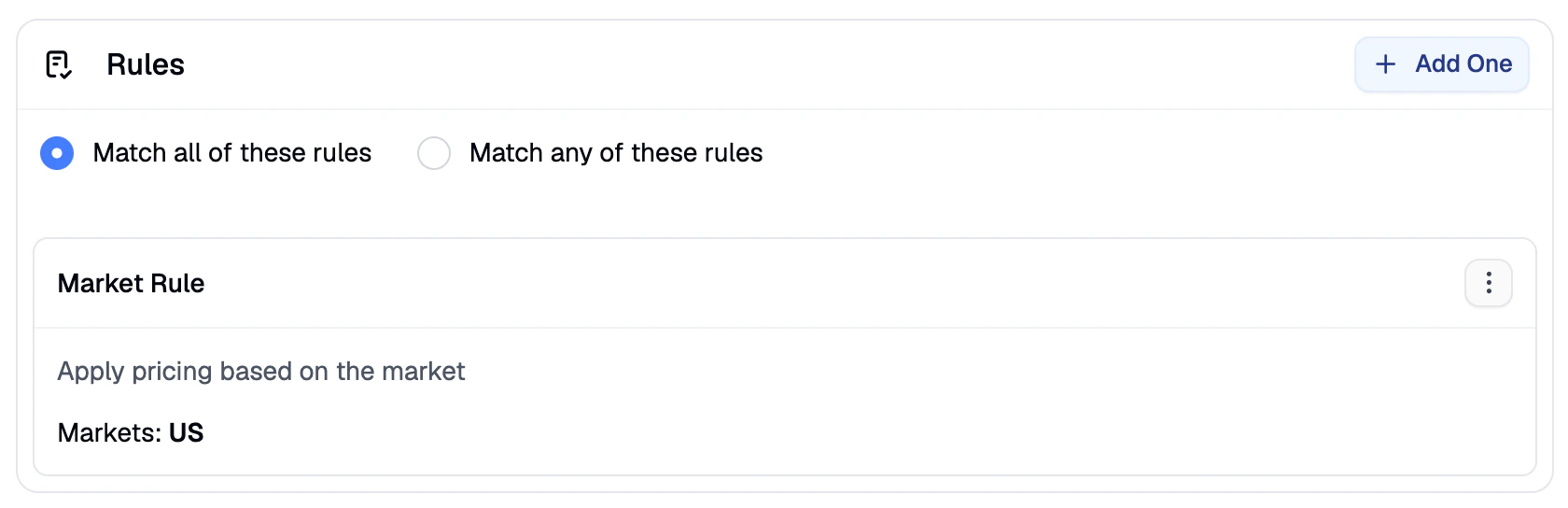
Add Products and Set Sale Prices
Click Add Products to open the product selector. Select the products you want to include in the sale and click Add Selected. Once the products appear in the list, click Edit Prices. Make sure USD is selected in the currency switcher, then enter the discounted price for each product in the Price column.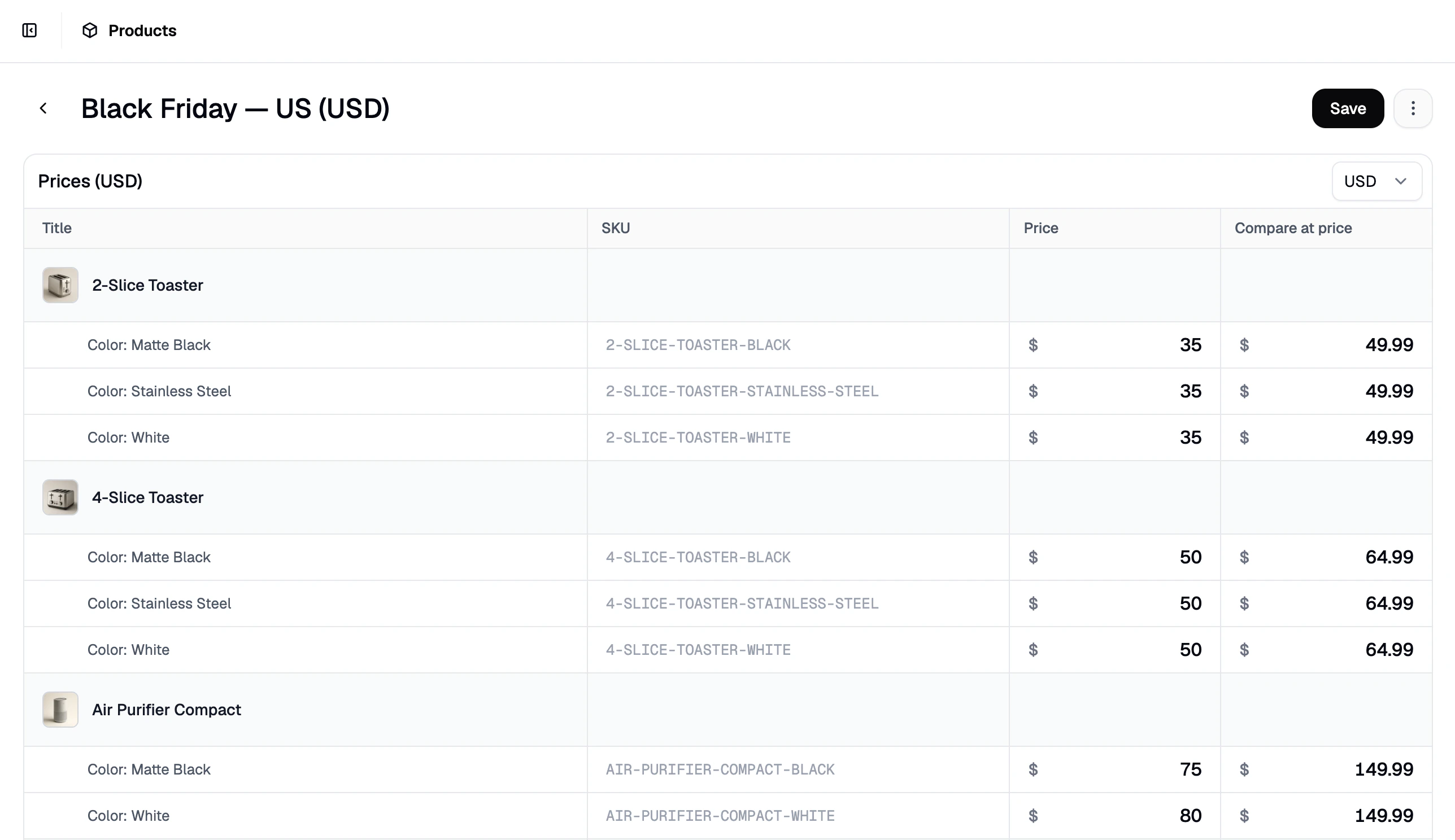
The price editor works like a spreadsheet — you can highlight multiple price fields and paste values in bulk to speed up entry across a large catalog.
2. Create the EU Black Friday Price List
Click New Price List again and create a second list for EU customers:- Name — e.g.,
Black Friday — EU (EUR) - Description — optional (e.g.,
Sale discounts for EU customers, Black Friday weekend) - Start Date / End Date — same window as the US list
- Click Add Rule, select Market, and choose your EU market
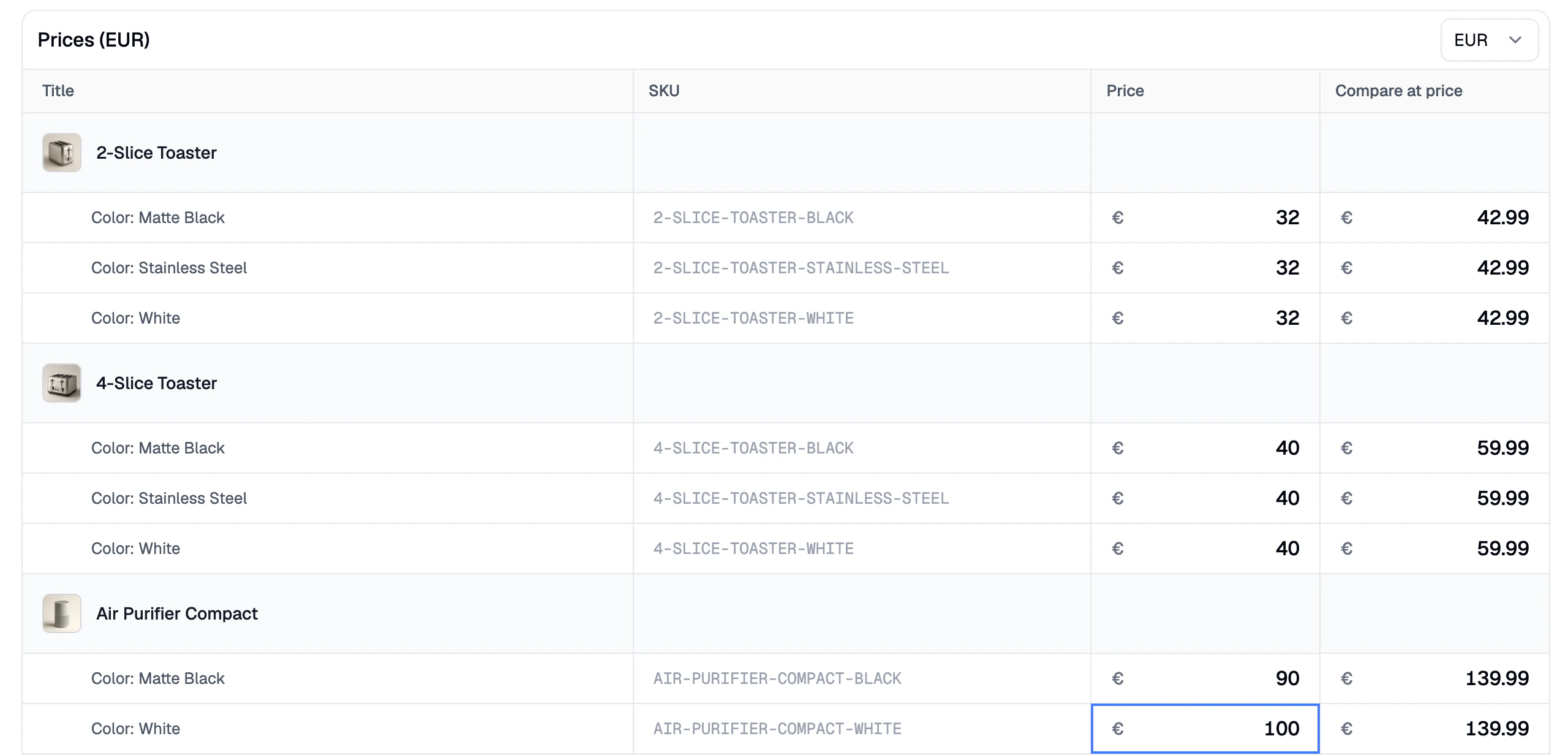
- Click Add Products and add the same products
- Click Edit Prices, make sure EUR is selected
3. Schedule Both Price Lists
With both price lists configured, go back to each one and click Schedule in the top right corner.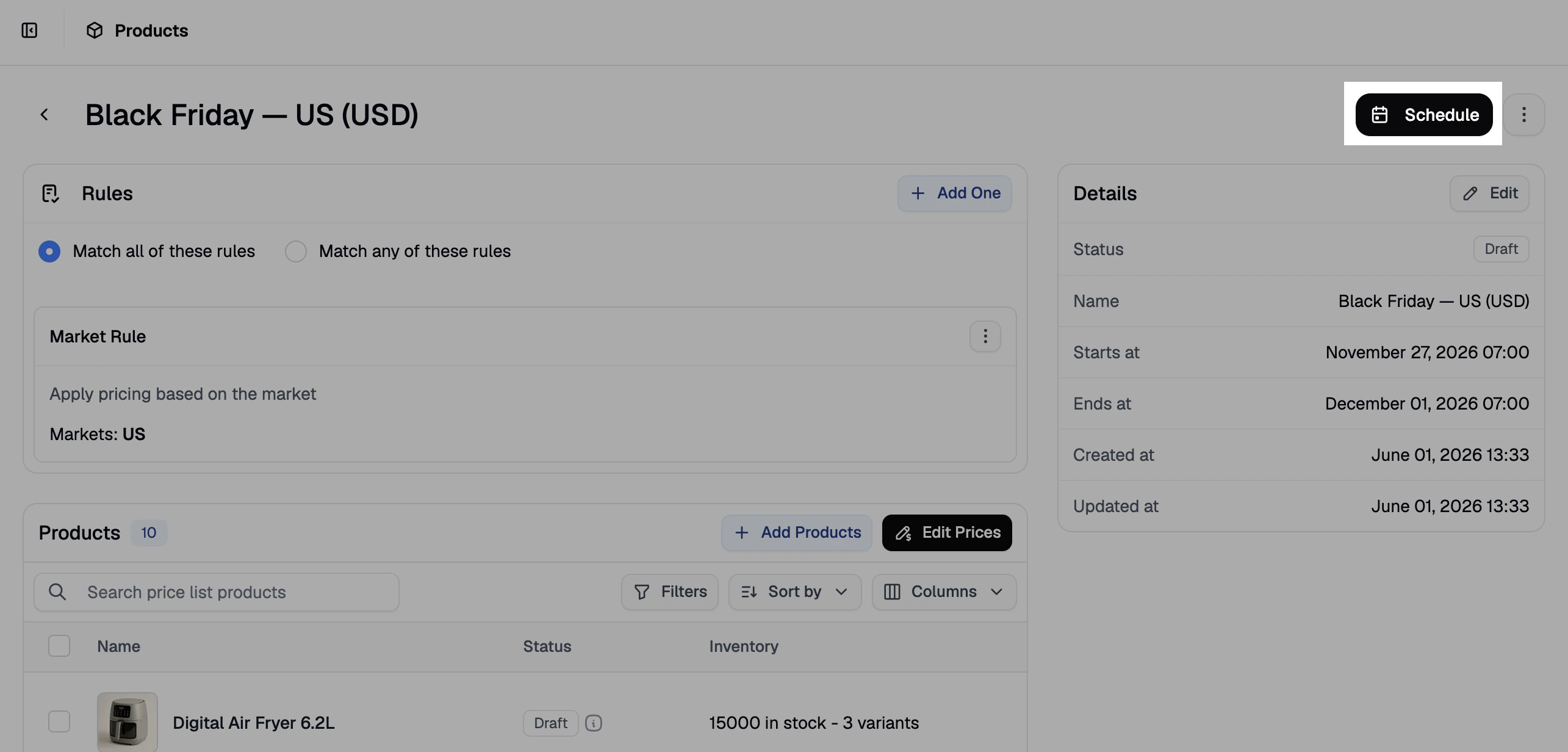
Because both price lists have a future start date, the button reads Schedule rather than Activate. Spree will automatically activate them at the start date and deactivate them at the end date — no manual intervention needed.
4. Verify
Once the sale is live (or to test in advance by temporarily setting the start date to now), confirm the pricing is applying correctly:- Visit your storefront in the United States market as a guest — product pages should show the discounted USD prices.
- Switch to your EU market — product pages should show the discounted EUR prices.
- Switch to any market not covered by either price list — standard base prices should appear.
- The price list status is Active (or Scheduled, if the start date hasn’t passed yet)
- The product has been added to the price list
- The Market rule is correctly set to the intended market
- The correct currency is selected in the price editor
Next Steps
- Price Lists — full reference for rules, scheduling, and price editing
- Set Up Multi-Region Pricing — apply different prices per market on a permanent basis
- Set Up Wholesale Pricing — combine market and customer group rules for B2B pricing