You may need to edit a customer’s profile to correct contact details, update addresses, manage tags, or adjust account-related settings. This is especially common when handling phone orders, B2B accounts, or customer support requests.
How to Edit a Customer
To edit a customer, navigate to Customers in the admin dashboard.
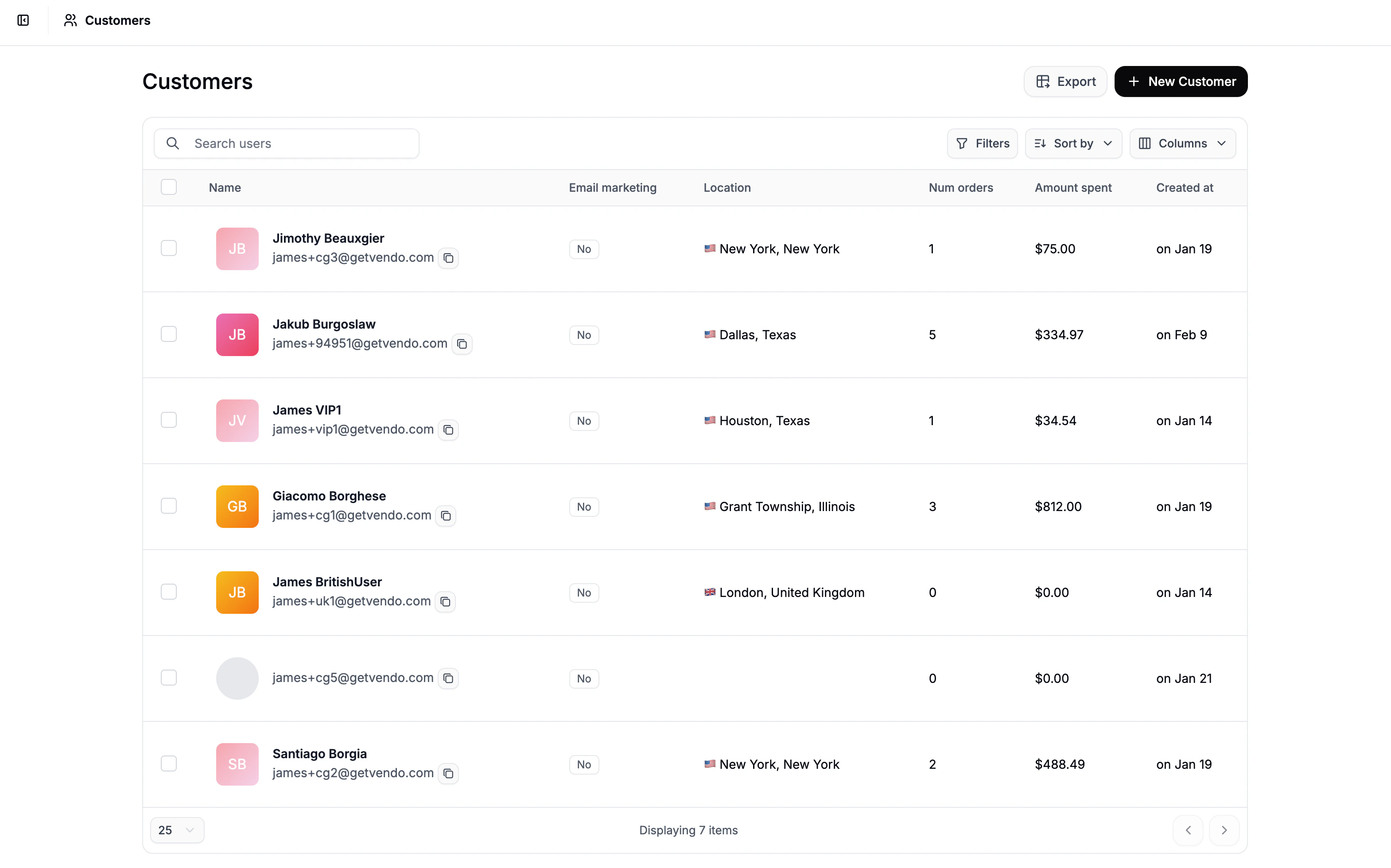 Find and click the customer you’d like to update to open their Customer Profile page.
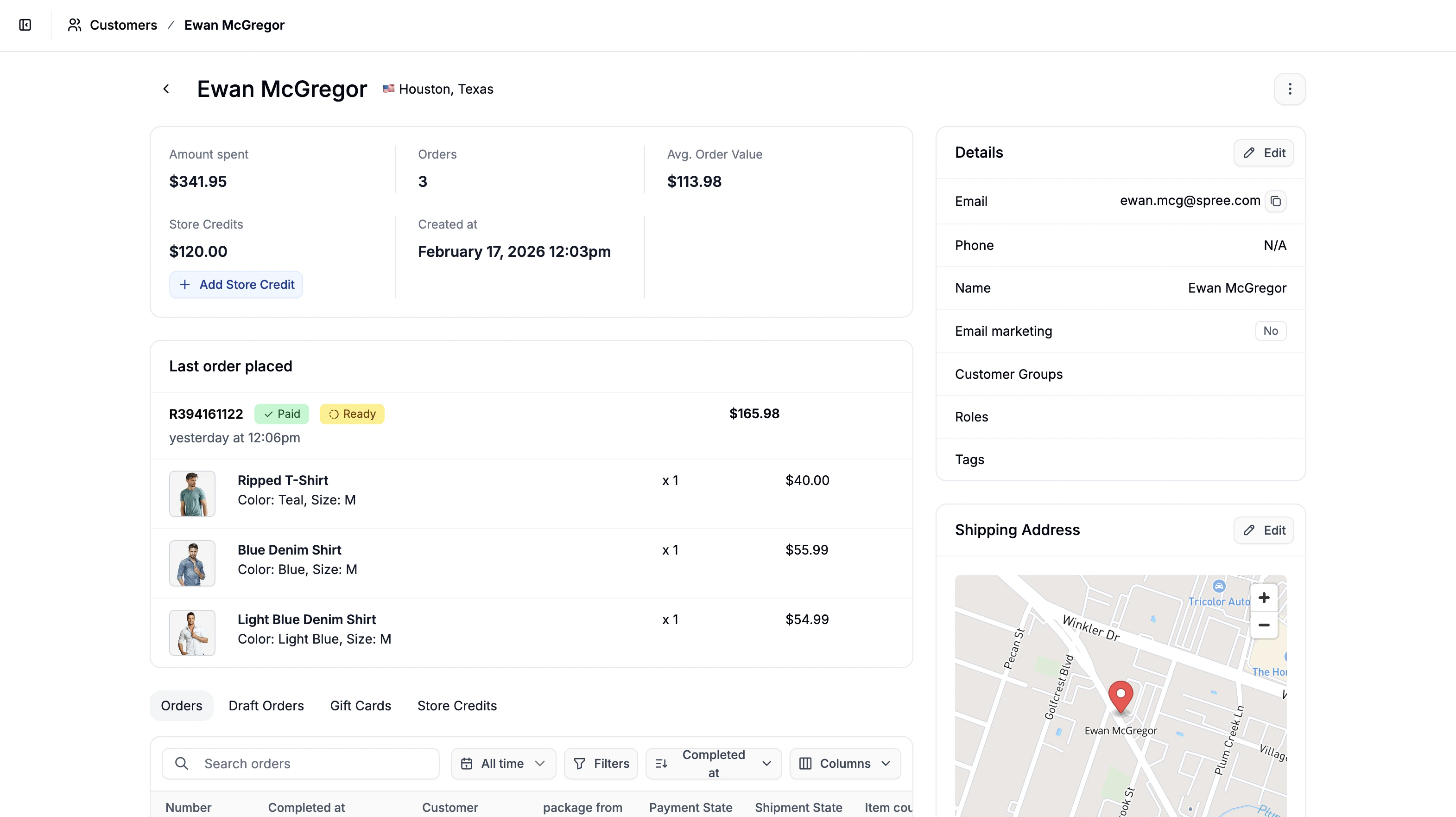 From here, there are several sections of the customer profile that you may edit when necessary.
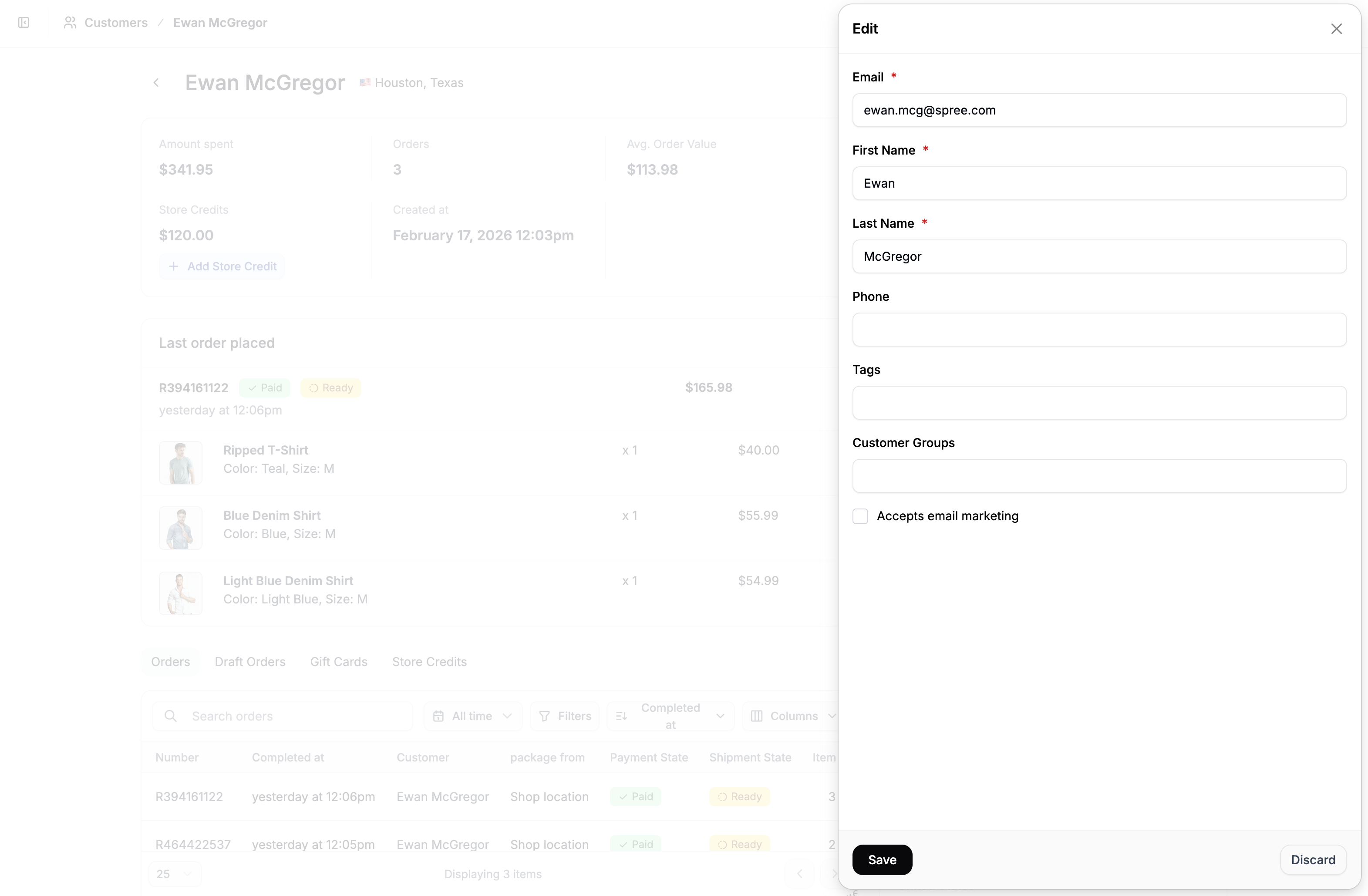 In the Details section, click Edit to open the edit form and modify:
- Email address
- Phone number
- First and last name
- Email marketing opt-in / opt-out status
- Tags
- Customer Group (if applicable)
Click Save to apply your changes.
Shipping Address
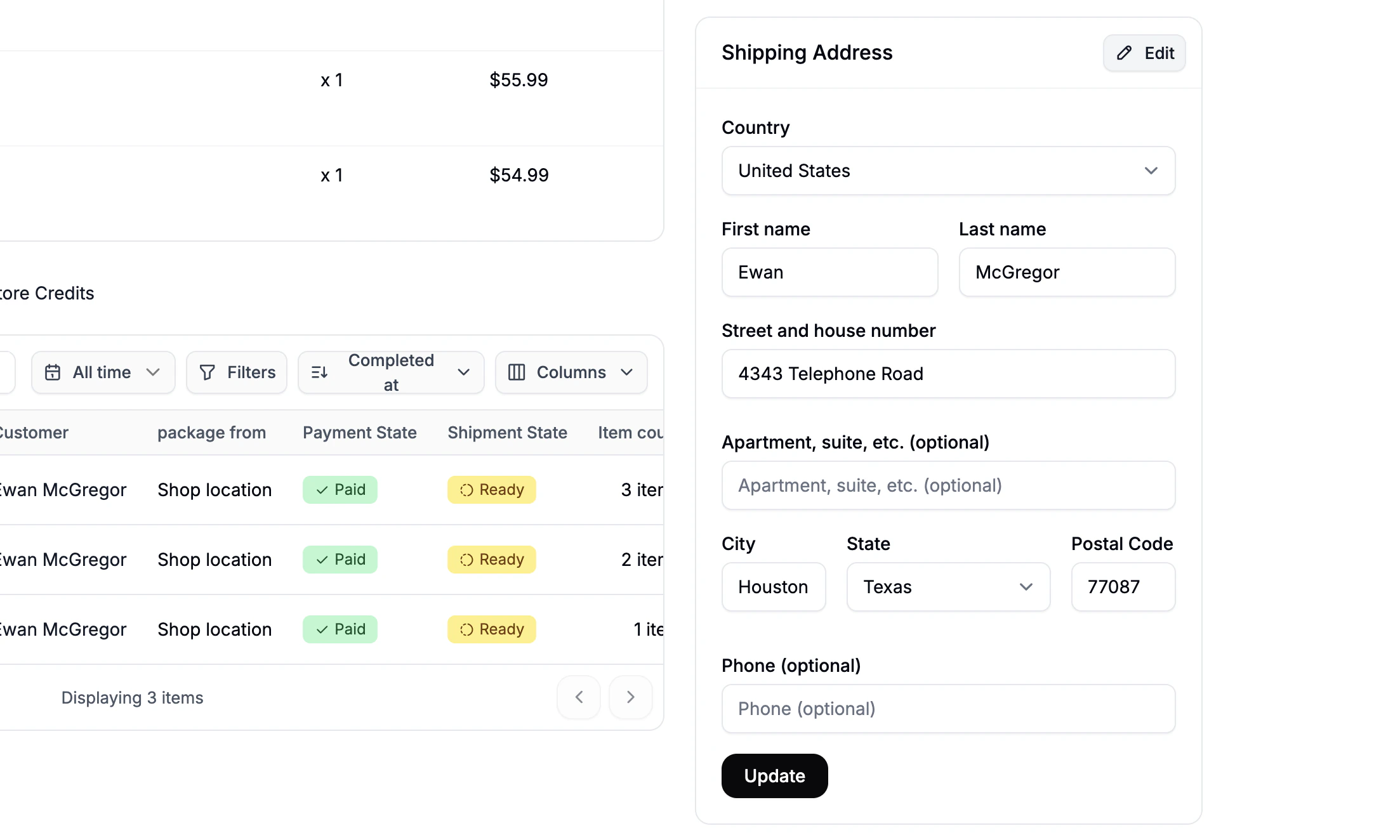 In the Shipping Address section, click Edit to reveal the address editor form, and update the customer’s default shipping address as required.
Updating the shipping address in the customer profile does not change the address on existing or outstanding orders. To modify an order’s shipping address, edit the order directly from the Orders tab.
Billing Address
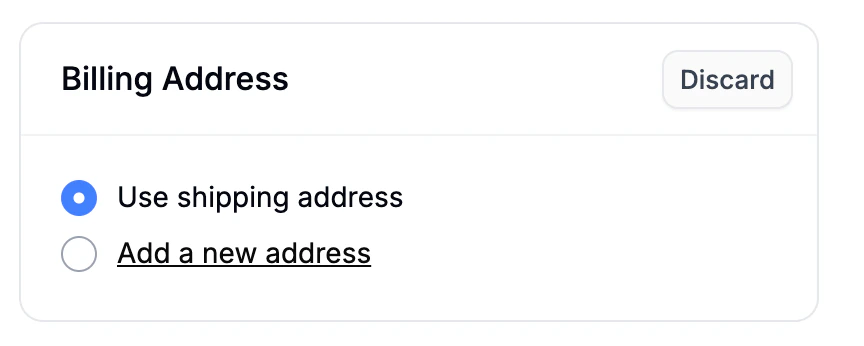 In the Billing Address section, click Edit to modify the customer’s default billing address.
You’ll then be able to choose between:
In the Billing Address section, click Edit to modify the customer’s default billing address.
You’ll then be able to choose between:
- Same as shipping address, or
- Add a new address
Selecting Add a new address will reveal the address form, where you can enter the updated billing details. Click Update to apply your changes.
As with shipping addresses, updating the billing address here will not affect existing orders.
Internal Notes
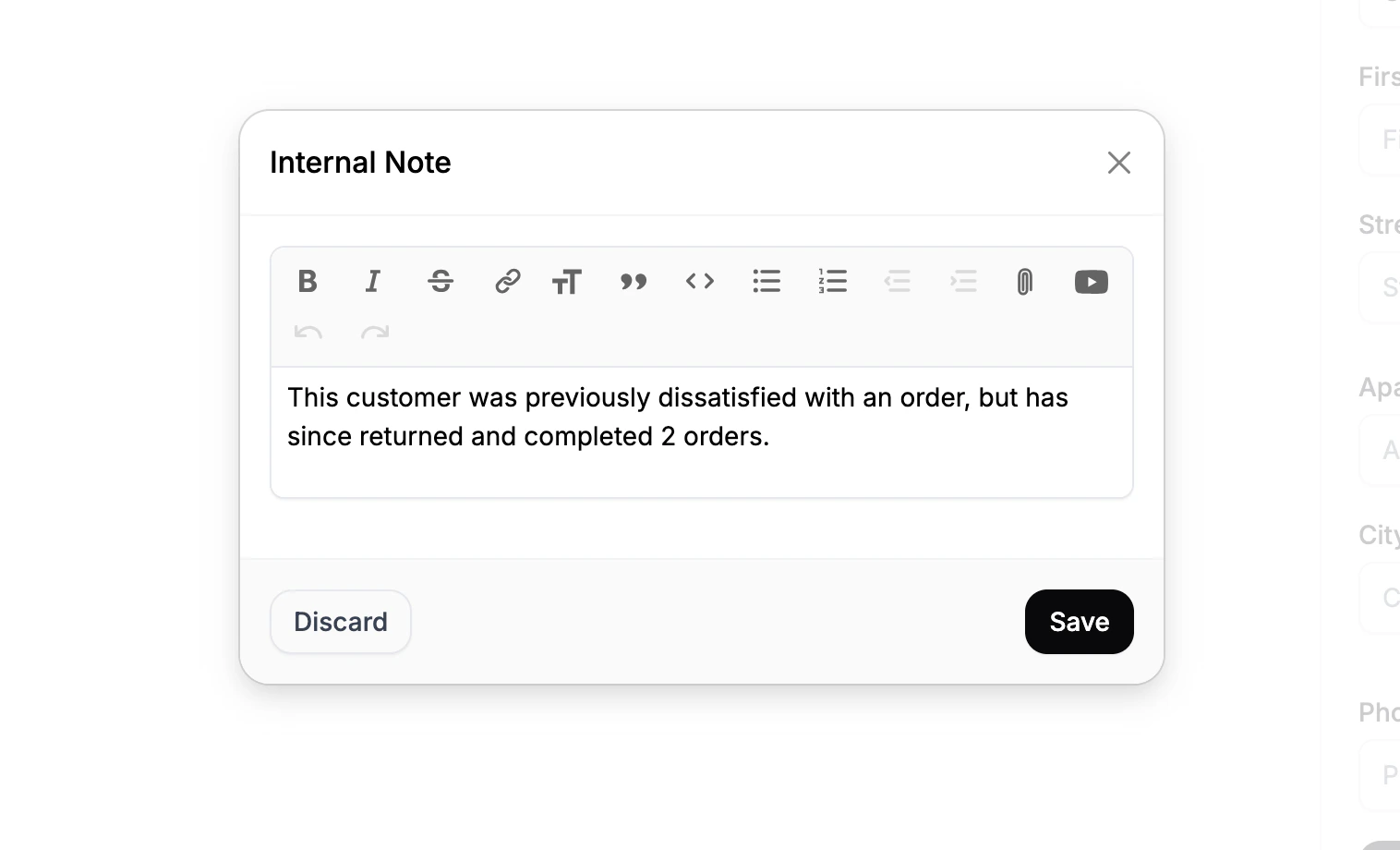 The Internal Note section allows admins to leave private notes about a customer (for example, special handling instructions, account context, or support history).
To add or update an internal note:
The Internal Note section allows admins to leave private notes about a customer (for example, special handling instructions, account context, or support history).
To add or update an internal note:
- Click Edit in the Internal Note section
- Enter your note
- Click Save
Internal notes are only visible to admins and are never shown on the storefront.
Issue Gift Cards
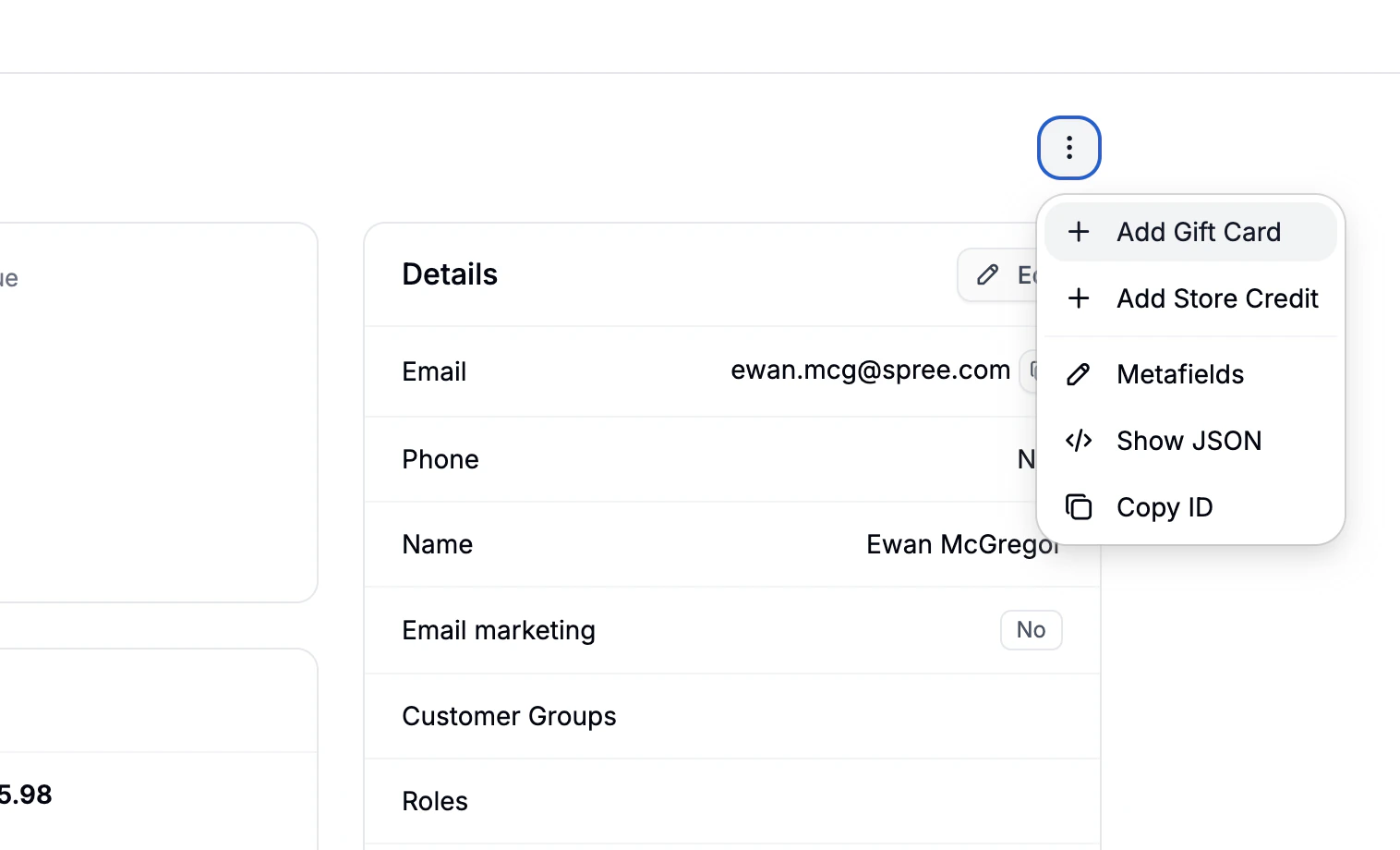 You can issue a gift card directly from the customer profile.
Click the three-dot menu in the top right corner and select Add Gift Card.
For detailed instructions, refer to the Issue a Gift Card support article.
You can issue a gift card directly from the customer profile.
Click the three-dot menu in the top right corner and select Add Gift Card.
For detailed instructions, refer to the Issue a Gift Card support article.
Issue Store Credits
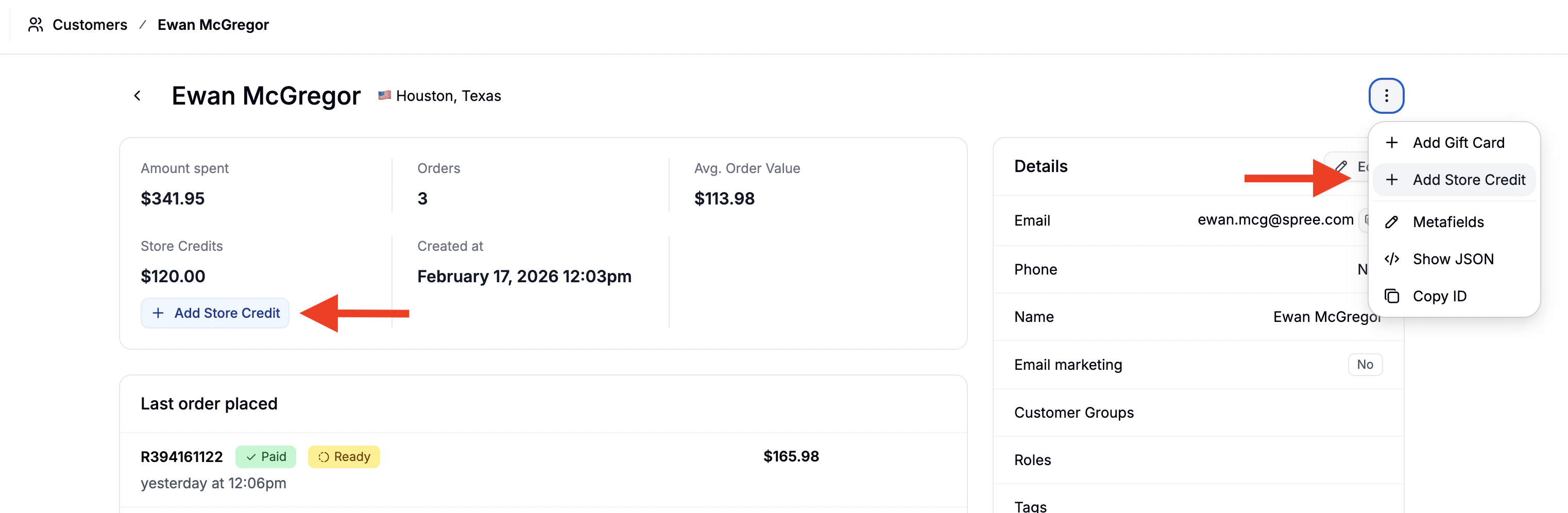 You can also assign store credit to a customer account.
Either:
You can also assign store credit to a customer account.
Either:
- Click the three-dot menu and Add Store Credit, or
- Use the Add Store Credit button in the analytics section at the top of the profile.
For step-by-step guidance, see the Issue Store Credits support article. 
