The Customer Profile gives you a complete view of a customer’s activity, order history, and account details - all in one place. It helps you better understand purchasing behavior, identify high-value customers, and provide faster, more personalized support.
Accessing a Customer Profile
To access a customer’s profile, navigate to Customers in the admin dashboard.
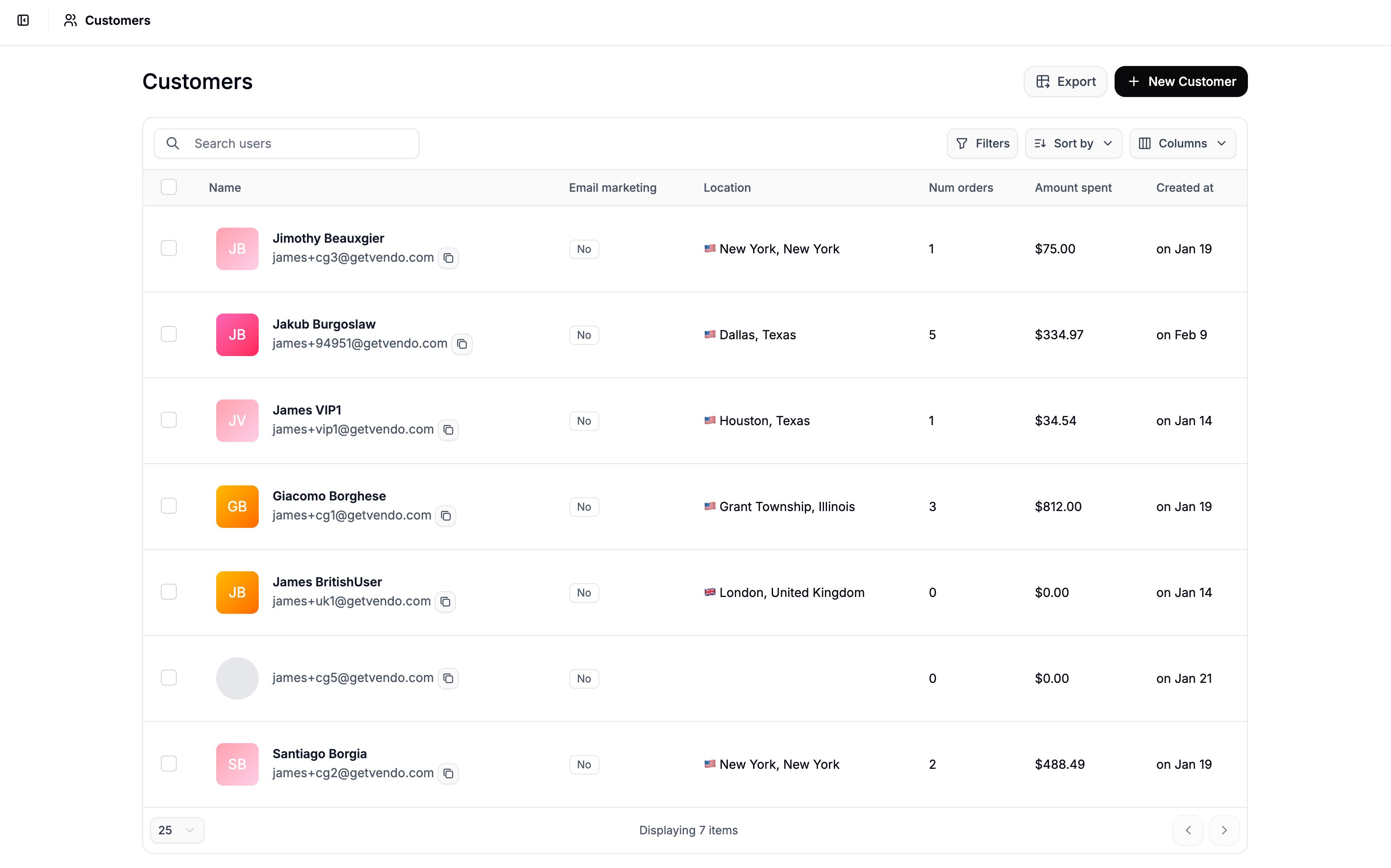 Find the customer you’d like to review (use search and filters if needed), and click on the customer’s name to open their profile.
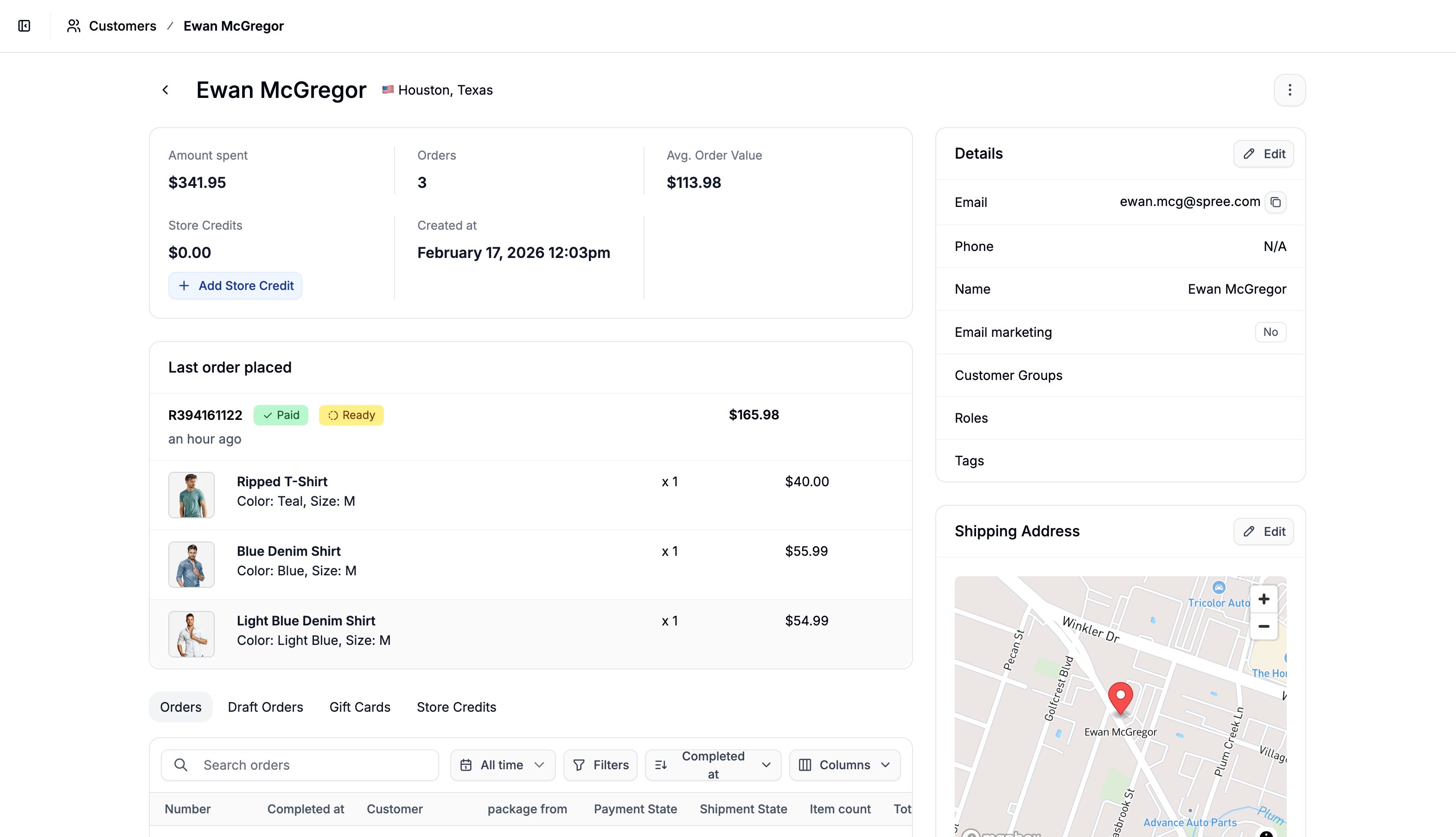 The profile page is divided into several sections, each providing important information about the customer.
User Analytics
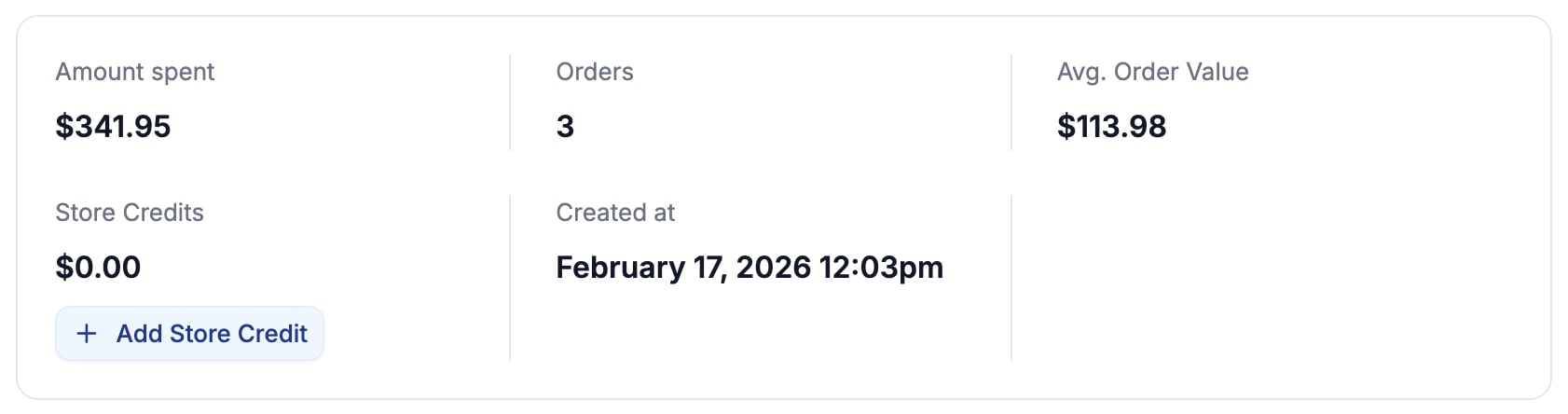 At the top of the page, you’ll see a summary of key customer metrics:
- Total Amount Spent
- Number of Orders
- Average Order Value
- Store Credits
- Shows the value of store credits the customer has available
- You can assign store credits here by clicking Add Store Credit
- Created At date, i.e., when they became a customer
These metrics give you a quick snapshot of the customer’s engagement and lifetime value.
Details
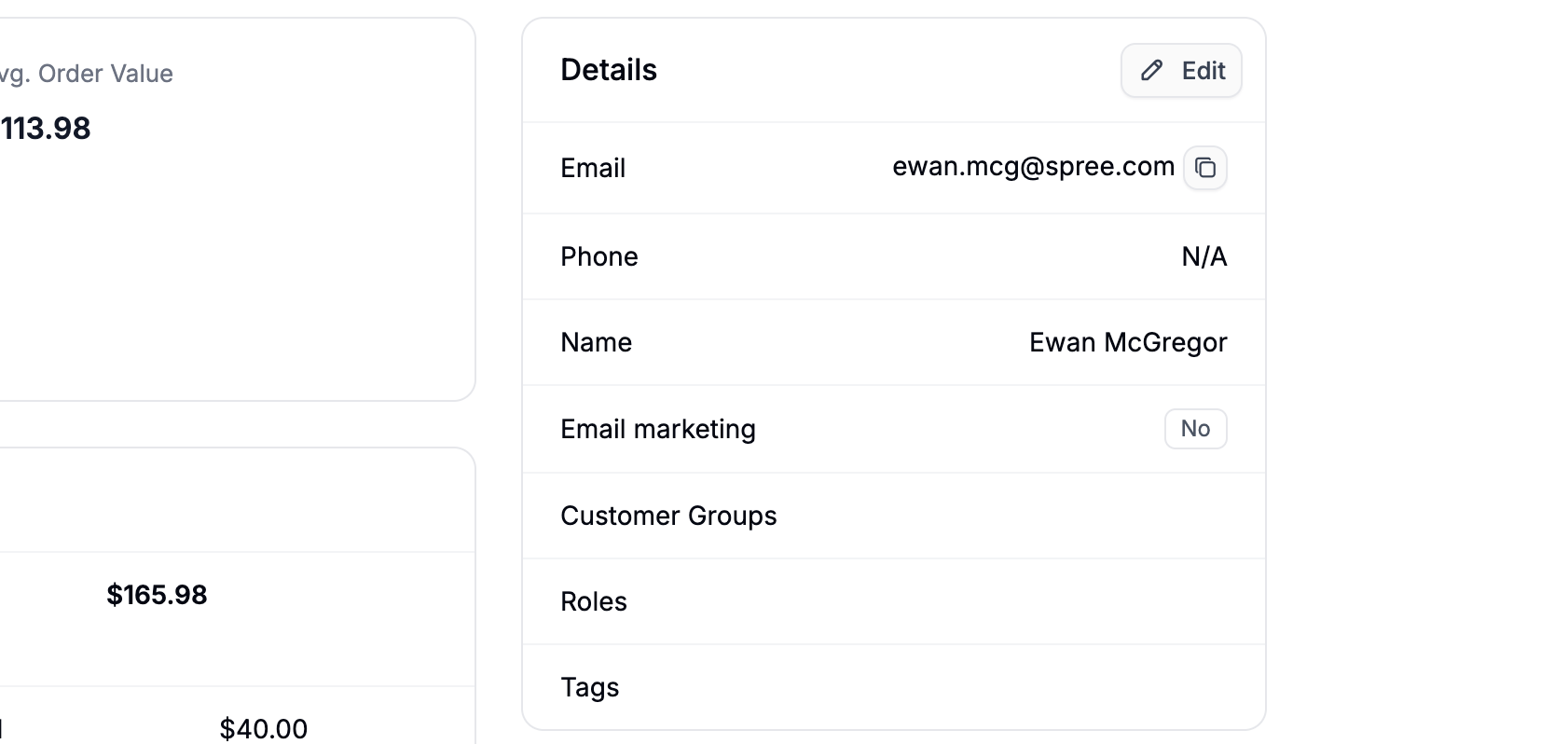 This section contains core account information, including:
- Email address
- Phone number
- First and last name
- Email marketing opt-in status
- Assigned Customer Groups
- Customer tags
You can use tags and customer groups to segment customers for promotions, pricing rules, or internal organization.
Addresses
Shipping Address
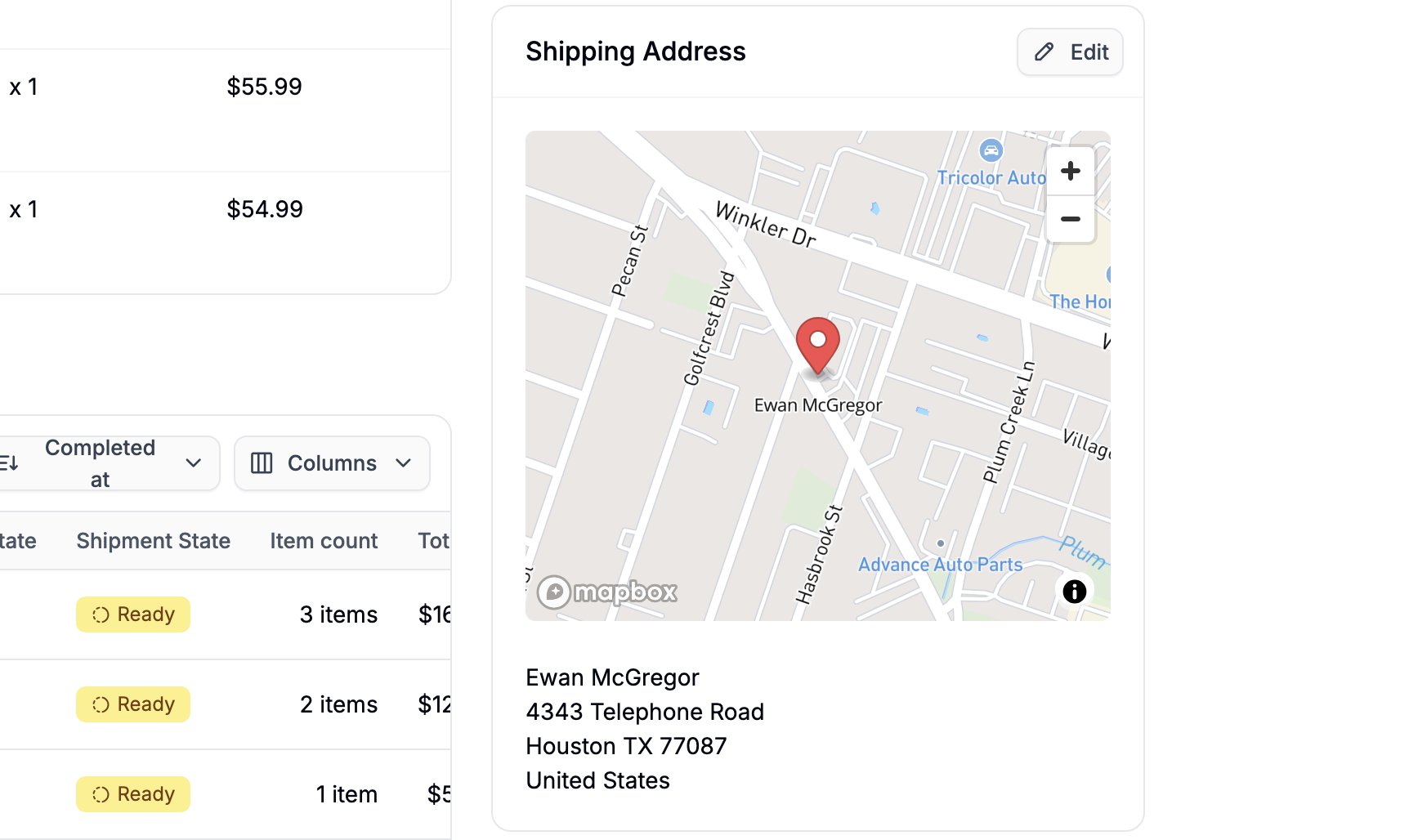 This section displays the customer’s default shipping address.
If a Google Maps API key is connected, a map preview with a pinned location will also be shown.
Billing Address
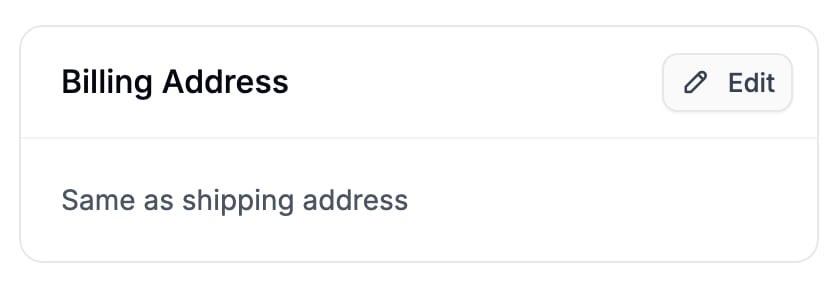 Displays the billing address or indicates “Same as shipping address” if that option is selected.
Internal Note
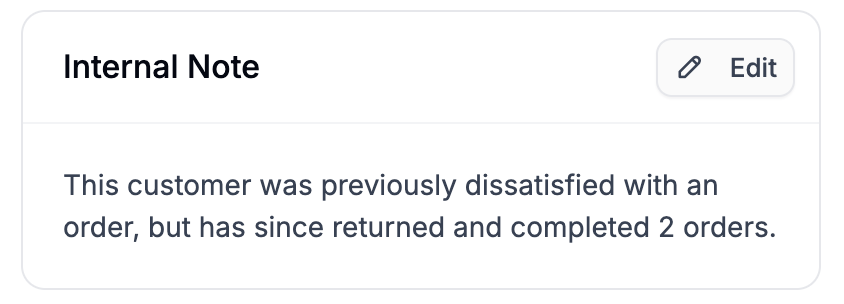 The Internal Note section displays any notes added by admins related to the customer.
These notes are not visible to the customer and can be used to:
The Internal Note section displays any notes added by admins related to the customer.
These notes are not visible to the customer and can be used to:
- Document special agreements or pricing arrangements
- Flag account concern
- Record support interactions
- Add context for other team members
Internal notes help ensure your team has the full picture when assisting the customer.
Last Order Placed
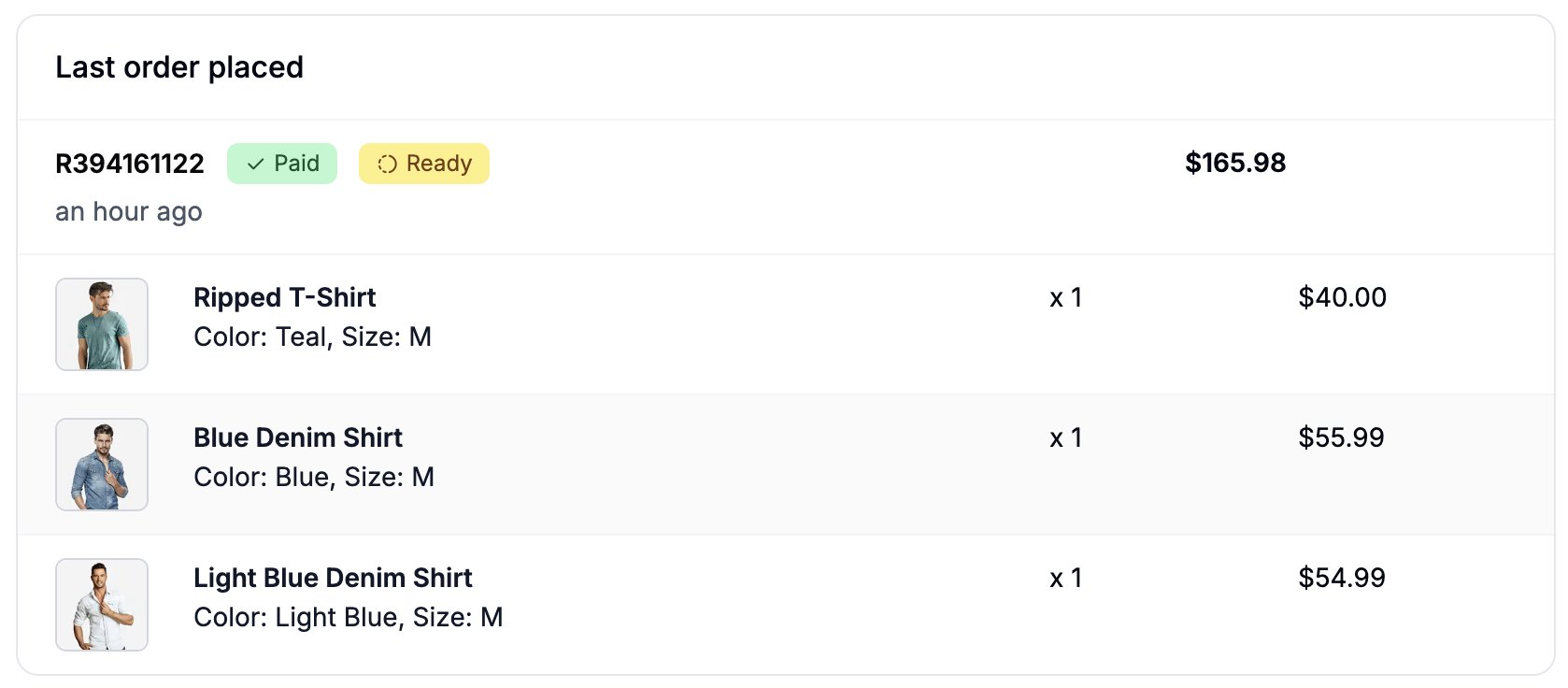 This section shows a summary of the most recent order placed by the customer.
You can click the order number (e.g., R394161122) to see the full order details page.
This section shows a summary of the most recent order placed by the customer.
You can click the order number (e.g., R394161122) to see the full order details page.
Orders
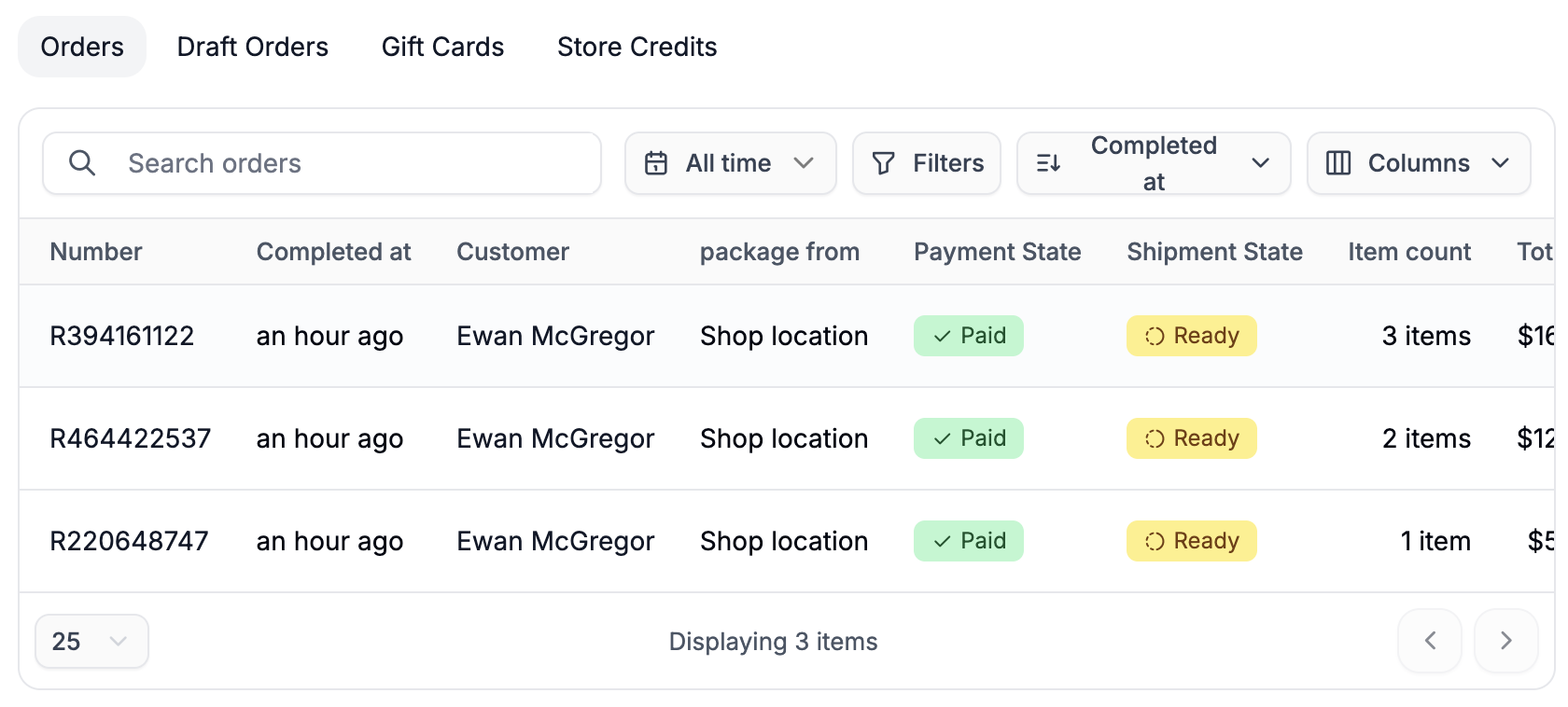 The Orders subsection displays a full list of all completed orders associated with the customer.
You can:
The Orders subsection displays a full list of all completed orders associated with the customer.
You can:
- Search within the customer’s orders
- Apply filters
- Sort and select which columns to display
This makes it easy to quickly find specific transactions.
Draft Orders
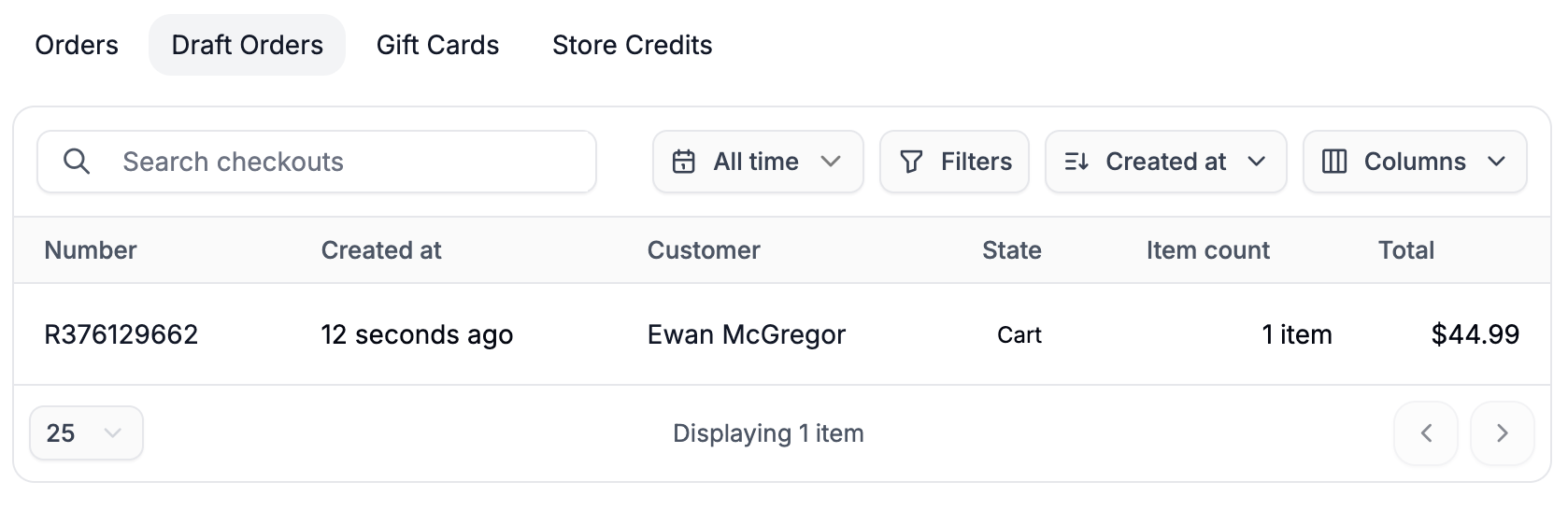 Draft Orders include:
- Abandoned carts
- Admin-created orders that are not yet completed
- Orders without attached payments
This section is useful for following up on incomplete purchases or manually created orders.
Gift Cards
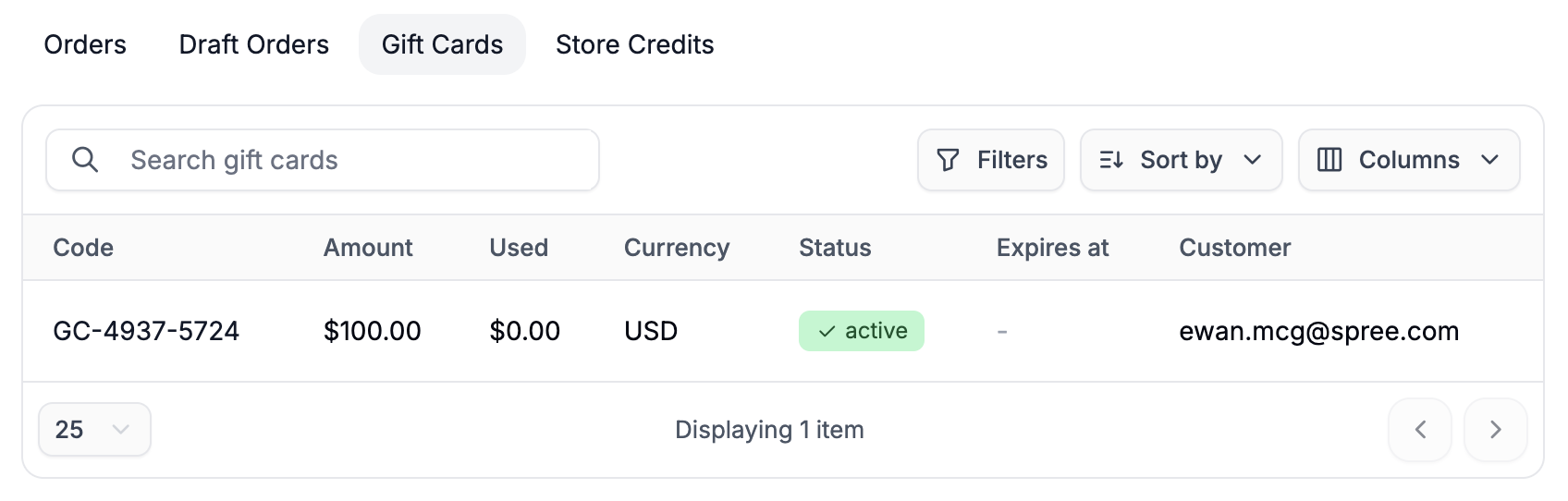 Displays all gift cards assigned to the customer, including:
- Current balance
- Amount used
- Currency
- Status
For more information on issuing gift cards, please refer to our Issuing Gift Cards article.
Store Credits
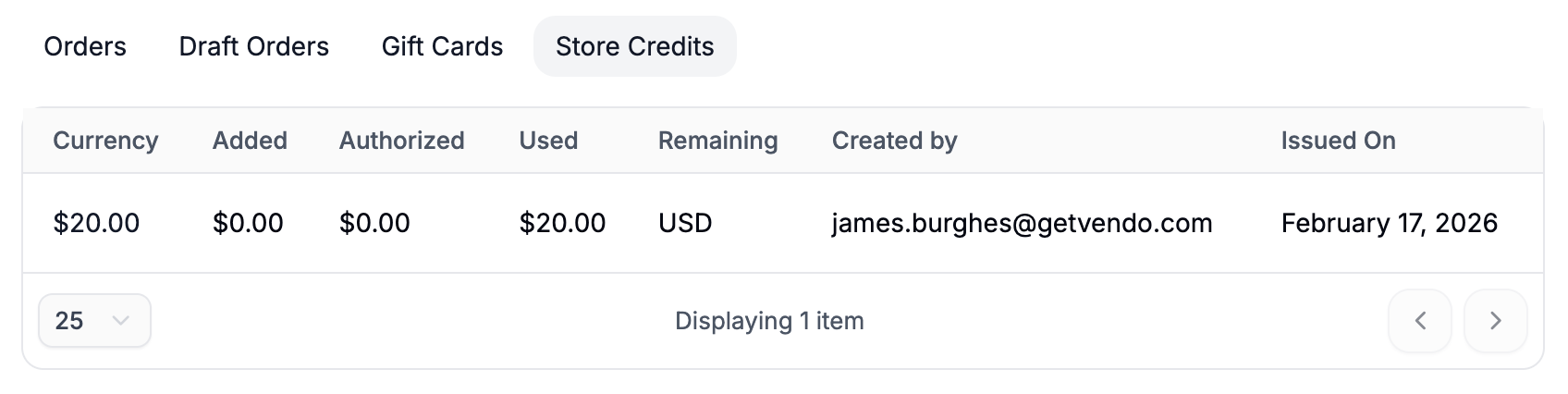 Displays any store credit assigned to the customer, along with usage history.
Store credits are commonly used for refunds, loyalty rewards, or manual adjustments.
In more advanced use cases, store credits may function as the primary payment method - especially in B2B environments where companies maintain a prepaid balance or approved credit limit and settle invoices periodically.
To learn more about store credits, please refer to our Assigning Store Credits article.
In summary, the Customer Profile gives you a centralized view of everything related to a customer - making it easier to support them, reward loyalty, and resolve issues quickly.
Displays any store credit assigned to the customer, along with usage history.
Store credits are commonly used for refunds, loyalty rewards, or manual adjustments.
In more advanced use cases, store credits may function as the primary payment method - especially in B2B environments where companies maintain a prepaid balance or approved credit limit and settle invoices periodically.
To learn more about store credits, please refer to our Assigning Store Credits article.
In summary, the Customer Profile gives you a centralized view of everything related to a customer - making it easier to support them, reward loyalty, and resolve issues quickly. 
