

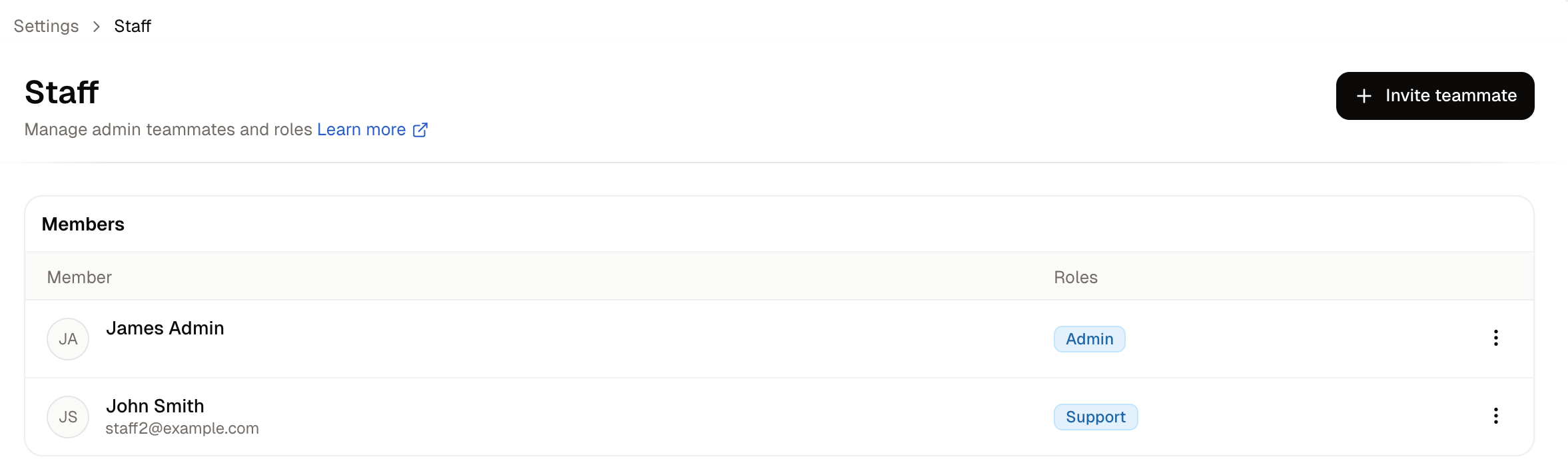
Staff are the people who can reach your dashboard. Each one holds one or more roles, and those roles decide what they can see and change. Keeping this list current is extremely important. What someone can reach depends on the roles they hold, and every role touches something that matters. Orders and customer records are the most sensitive, but a merchandiser editing product information or a marketer building promotions can change what you sell and what you charge for it. An ex-staff member who keeps access is a genuine risk rather than an untidy record. To manage staff, navigate to Settings → Staff, under the Users & permissions group. The Staff list, showing each member and the roles they hold The table has two columns:
  • Member - The person’s name and email address.
  • Roles - One badge per role they hold.

How to Invite a Teammate

Click Invite teammate. The Invite teammate panel
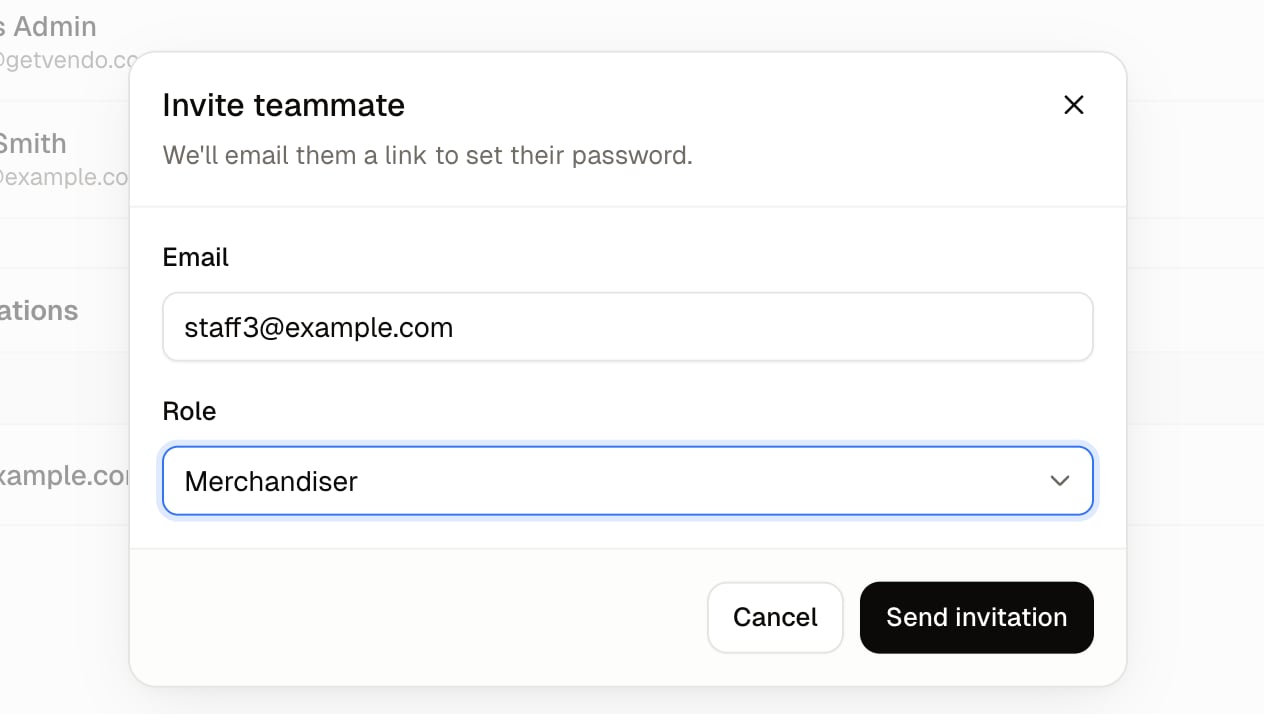
  1. Enter their work email address.
  2. Choose the Role they should have. The list is your store’s roles, so it grows as you create more.
  3. Click Send invitation.
Spree emails them a link to set their own password, so nobody types a password on anyone else’s behalf.
The invitation offers a single Role while the table column reads Roles, plural. A person can hold several, so to give somebody a second role, invite them first and edit them afterwards.

Pending Invitations

Invitations that have been sent but not yet accepted appear under Pending invitations. The row actions give you two options:
  • Resend - Sends the invitation email again, for anyone who has lost the original.
  • Copy invitation link - Puts the link on your clipboard so you can pass it on yourself, which is useful when the email is not reaching them.
Pending invitations awaiting acceptance

How to Edit a Teammate

Open the row actions on a teammate and choose Edit. A side panel opens where you can change:
  • First name and Last name - Correct a spelling, or update a name that has changed.
  • Roles - Add a second role, swap one for another, or narrow somebody’s access after a change of job.

How to Remove Someone

Open the row actions and choose Remove from staff.
Do this the day somebody leaves rather than at the end of the month. Until you do, their access is exactly what it was.

Further Reading

  • Roles - Defining what each role can see and do
  • API Keys - Access for applications, which is separate from staff access