

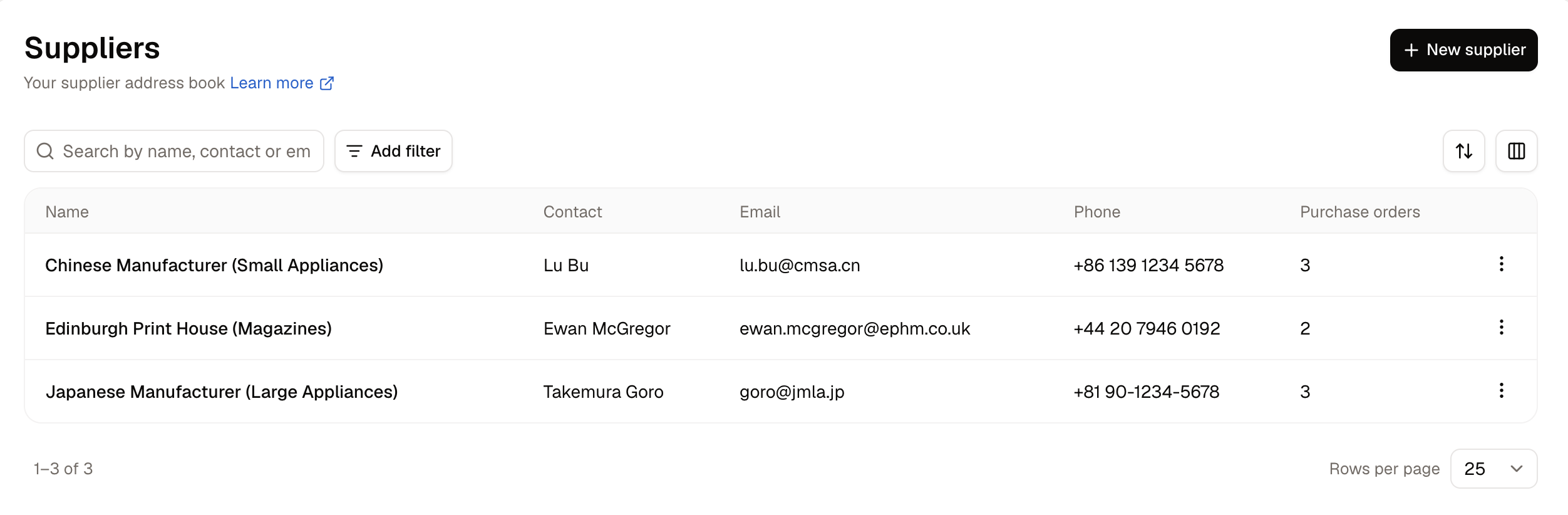
- Name - How the supplier appears on purchase orders.
- Contact, Email and Phone - Who you deal with there and how to reach them.
- Purchase orders - How many orders have been placed with this supplier.
Set your suppliers up before raising your first purchase order. The Supplier box on a purchase order only offers suppliers already on record.
How to Create a Supplier
Click New supplier in the top-right corner. A panel opens over the list with the following fields:- Name - How the supplier appears on purchase orders. This has to be unique, and Spree refuses a blank one.
- Contact name - Who you deal with there.
- Email and Phone - How to reach them.
- Address, Address line 2, City, Postal code, Country - Where they are.
- Notes - Anything your team should know, such as account numbers, lead times, or who to ask for.
How to Edit a Supplier
Open the row menu on any supplier and choose Edit. The panel is the same one you filled in to create it. Renaming a supplier is safe. Every purchase order pointing at it follows the new name.How to Delete a Supplier
A supplier can only be deleted if nothing has been ordered from them. Once a purchase order names a supplier, the record of that supplier must be kept in the system. The Purchase orders column on the list tells you at a glance which suppliers can still be removed. To delete a supplier with no purchase orders, open the row menu and choose the delete action.To retire a supplier you can no longer delete, rename it to something obvious such as “Do not use” so nobody picks it by mistake.
Further Reading
- Purchase Orders - Ordering stock from a supplier
- Inventory - Where received stock lands