> ## Documentation Index
> Fetch the complete documentation index at: https://spreecommerce.org/docs/llms.txt
> Use this file to discover all available pages before exploring further.
# Tax Rates
> Learn how to set the tax charged on each category of goods, in each place you sell, in Spree Commerce.
A tax rate records a percentage of tax you are required to collect, and where it applies. Each rate ties a [tax category](/docs/user/settings/tax-categories) to a place, so goods carrying that category are taxed at that figure when they ship there.
The figures themselves come from the tax authority in each place you sell. What you need to do is tell Spree what they are, so it applies the right rate to each order.
Most stores end up with several: one per category per country, and more where a country taxes by state. For example, a store selling standard and reduced-rate goods into three countries needs six rates.
To manage tax rates, navigate to **Settings → Tax rates**, under the **Selling** group.
Tax rates configure Spree's built-in tax engine. They do not decide which engine a market uses. If you have connected an external tax provider, select it in **Tax engine** on each [market](/docs/user/settings/markets) rather than configuring rates here.
## Reviewing Your Tax Rates
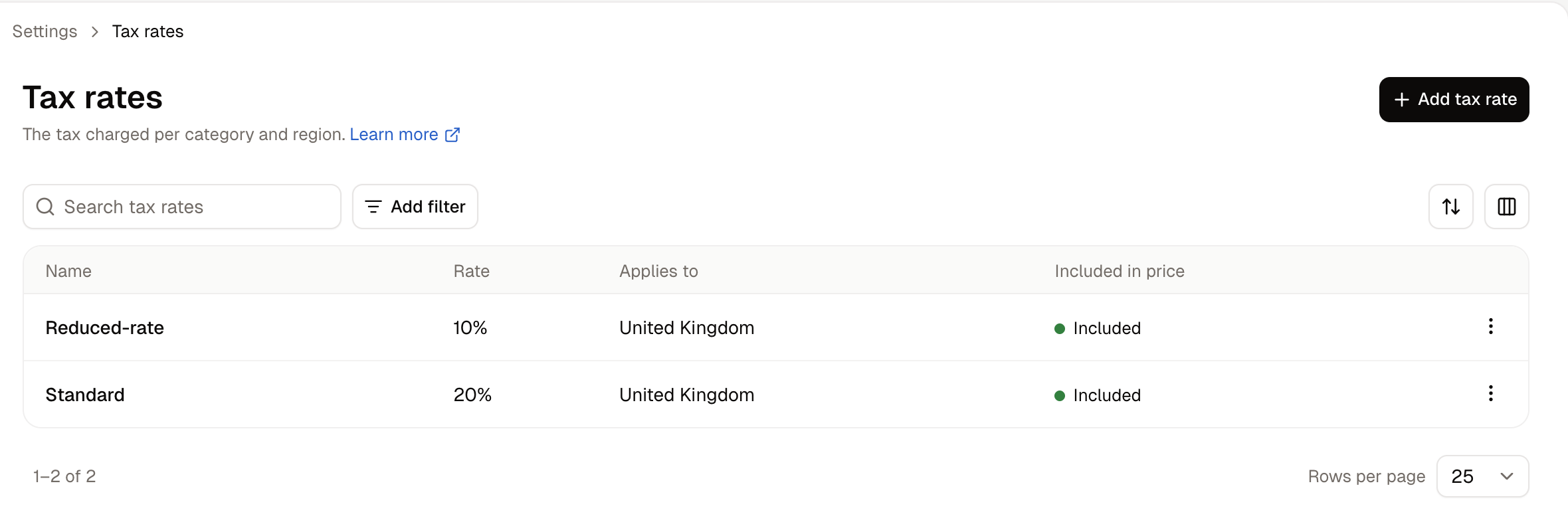 Each row shows:
* **Name** - What the rate is called.
* **Rate** - The percentage charged.
* **Applies to** - The country, and the state where one is set.
* **Included in price** - Whether displayed prices already contain this tax.
## How to Create a Tax Rate
Click **Add tax rate**.
Each row shows:
* **Name** - What the rate is called.
* **Rate** - The percentage charged.
* **Applies to** - The country, and the state where one is set.
* **Included in price** - Whether displayed prices already contain this tax.
## How to Create a Tax Rate
Click **Add tax rate**.
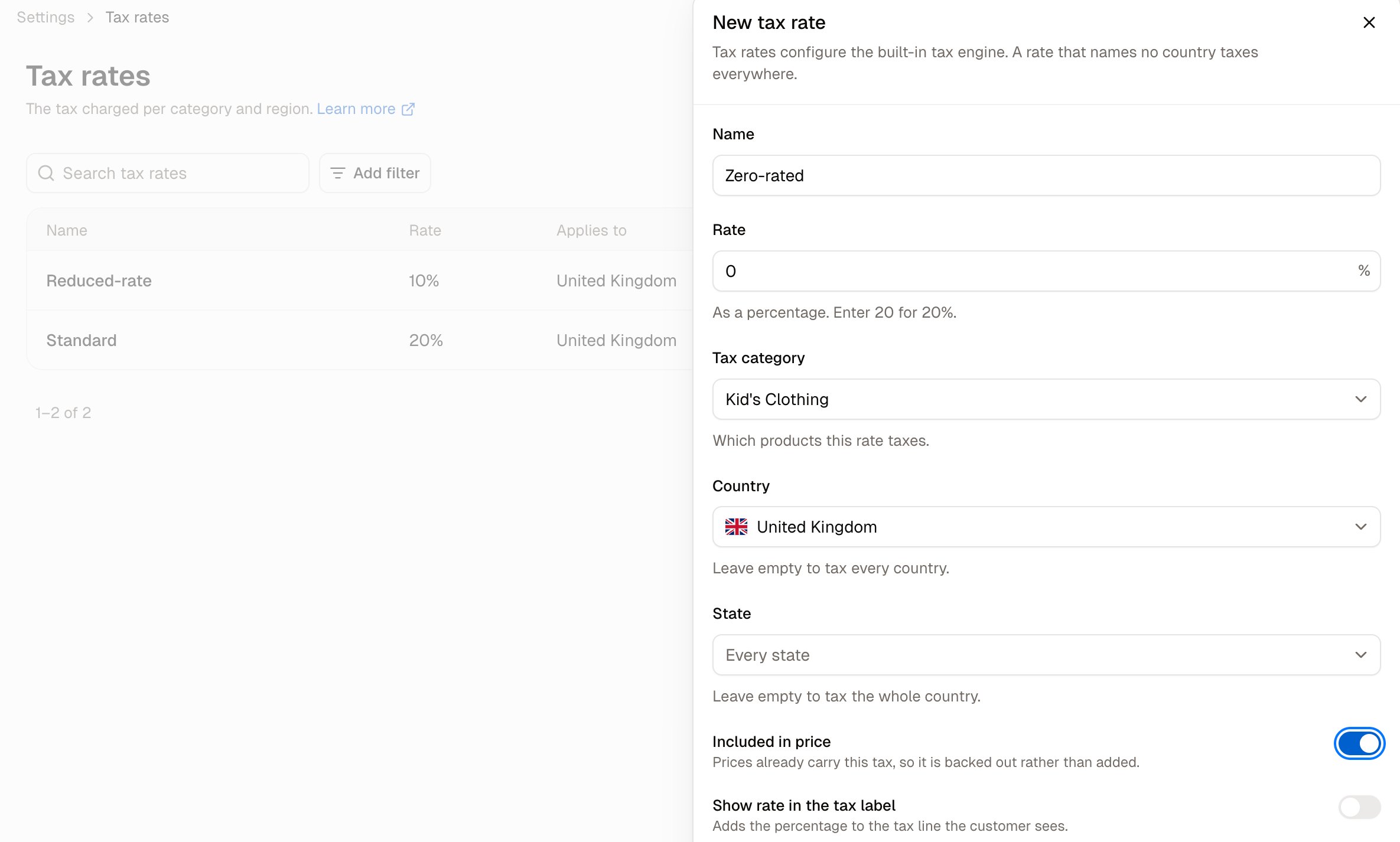 * **Name** - What customers see on the tax line, so use the name they would recognise, such as VAT or Sales Tax.
* **Rate** - The percentage, entered as a whole number. Enter `20` for 20%.
* **Tax category** - Which products this rate taxes. Only goods carrying this category are affected.
* **Country** - Where the rate applies. Leave it empty to tax every country.
* **State** - Narrows the rate to one state. This field only appears once you pick a country that has states.
* **Included in price** - Prices already carry this tax, so it is backed out of the displayed price rather than added at checkout.
* **Show rate in the tax label** - Adds the percentage to the tax line the customer sees, so it reads "VAT (20%)" rather than "VAT".
Click **Create tax rate**.
A rate that names no country taxes every country. Leaving **Country** empty is occasionally what you want, but more often it is an oversight that taxes customers who should not be charged.
### Included in price, or added at checkout
This switch is the difference between how European and North American stores usually work, and getting it wrong misprices everything on the affected goods.
* **On** suits regions where advertised prices include tax. A product shown at 120 with a 20% rate is treated as 100 plus 20 tax, and the customer pays 120.
* **Off** suits regions where tax is added at the end. A product shown at 120 with a 20% rate becomes 144 at checkout.
Whether a market displays prices with tax included is set on the market itself. Set **Tax-inclusive pricing** on the [market](/docs/user/settings/markets) and **Included in price** on its rates to match, or displayed prices and charged tax will disagree.
## How to Edit a Tax Rate
Open the row menu and choose **Edit**.
Changes apply to new calculations only. Orders already placed keep the tax they were charged, so correcting a rate does not rewrite your history.
## How to Delete a Tax Rate
Open the row menu and choose **Delete**.
Deleting a rate stops tax being charged on its category in that location. Be sure to check that another rate covers those goods before removing one.
## Further Reading
* [Tax Categories](/docs/user/settings/tax-categories) - The groupings a rate applies to
* [Markets](/docs/user/settings/markets) - Where tax-inclusive pricing and the tax engine are set
* [Discounts, Fees and Taxes](/docs/user/orders/discounts-fees-and-taxes) - How tax appears on an order
This documentation is built and hosted on [Mintlify](https://mintlify.com), a developer documentation platform.
* **Name** - What customers see on the tax line, so use the name they would recognise, such as VAT or Sales Tax.
* **Rate** - The percentage, entered as a whole number. Enter `20` for 20%.
* **Tax category** - Which products this rate taxes. Only goods carrying this category are affected.
* **Country** - Where the rate applies. Leave it empty to tax every country.
* **State** - Narrows the rate to one state. This field only appears once you pick a country that has states.
* **Included in price** - Prices already carry this tax, so it is backed out of the displayed price rather than added at checkout.
* **Show rate in the tax label** - Adds the percentage to the tax line the customer sees, so it reads "VAT (20%)" rather than "VAT".
Click **Create tax rate**.
A rate that names no country taxes every country. Leaving **Country** empty is occasionally what you want, but more often it is an oversight that taxes customers who should not be charged.
### Included in price, or added at checkout
This switch is the difference between how European and North American stores usually work, and getting it wrong misprices everything on the affected goods.
* **On** suits regions where advertised prices include tax. A product shown at 120 with a 20% rate is treated as 100 plus 20 tax, and the customer pays 120.
* **Off** suits regions where tax is added at the end. A product shown at 120 with a 20% rate becomes 144 at checkout.
Whether a market displays prices with tax included is set on the market itself. Set **Tax-inclusive pricing** on the [market](/docs/user/settings/markets) and **Included in price** on its rates to match, or displayed prices and charged tax will disagree.
## How to Edit a Tax Rate
Open the row menu and choose **Edit**.
Changes apply to new calculations only. Orders already placed keep the tax they were charged, so correcting a rate does not rewrite your history.
## How to Delete a Tax Rate
Open the row menu and choose **Delete**.
Deleting a rate stops tax being charged on its category in that location. Be sure to check that another rate covers those goods before removing one.
## Further Reading
* [Tax Categories](/docs/user/settings/tax-categories) - The groupings a rate applies to
* [Markets](/docs/user/settings/markets) - Where tax-inclusive pricing and the tax engine are set
* [Discounts, Fees and Taxes](/docs/user/orders/discounts-fees-and-taxes) - How tax appears on an order
This documentation is built and hosted on [Mintlify](https://mintlify.com), a developer documentation platform.