> ## Documentation Index
> Fetch the complete documentation index at: https://spreecommerce.org/docs/llms.txt
> Use this file to discover all available pages before exploring further.
# Tax Categories
> Learn how to group products by tax treatment in Spree Commerce, so the right rate applies to the right goods.
A tax category groups products by how they should be taxed. Most stores need at least two, because not everything you sell is taxed the same way: standard goods at the full rate, and whatever your region treats differently, such as books, children's clothing or food.
A category holds no percentage of its own. It is a label you attach to products, and a [tax rate](/docs/user/settings/tax-rates) then names the category and supplies the figure. Splitting it this way means one category can carry a different rate in every country you sell to.
To manage tax categories, navigate to **Settings → Tax categories**, under the **Selling** group.
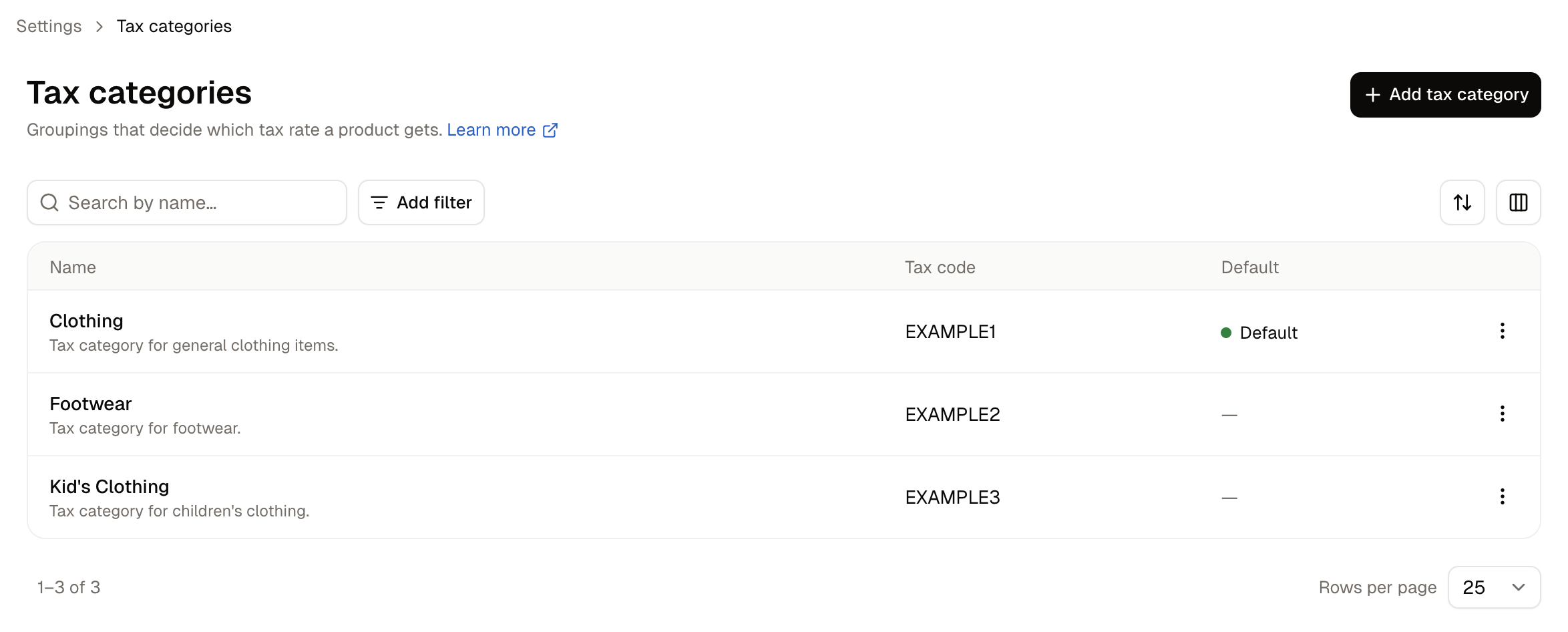 Each row shows:
* **Name** - What the category is called, with its description beneath.
* **Tax code** - The code an external tax service knows this category by, if you use one.
* **Default** - The category products fall back to when none is set.
## How to Create a Tax Category
Click **Add tax category**.
Each row shows:
* **Name** - What the category is called, with its description beneath.
* **Tax code** - The code an external tax service knows this category by, if you use one.
* **Default** - The category products fall back to when none is set.
## How to Create a Tax Category
Click **Add tax category**.
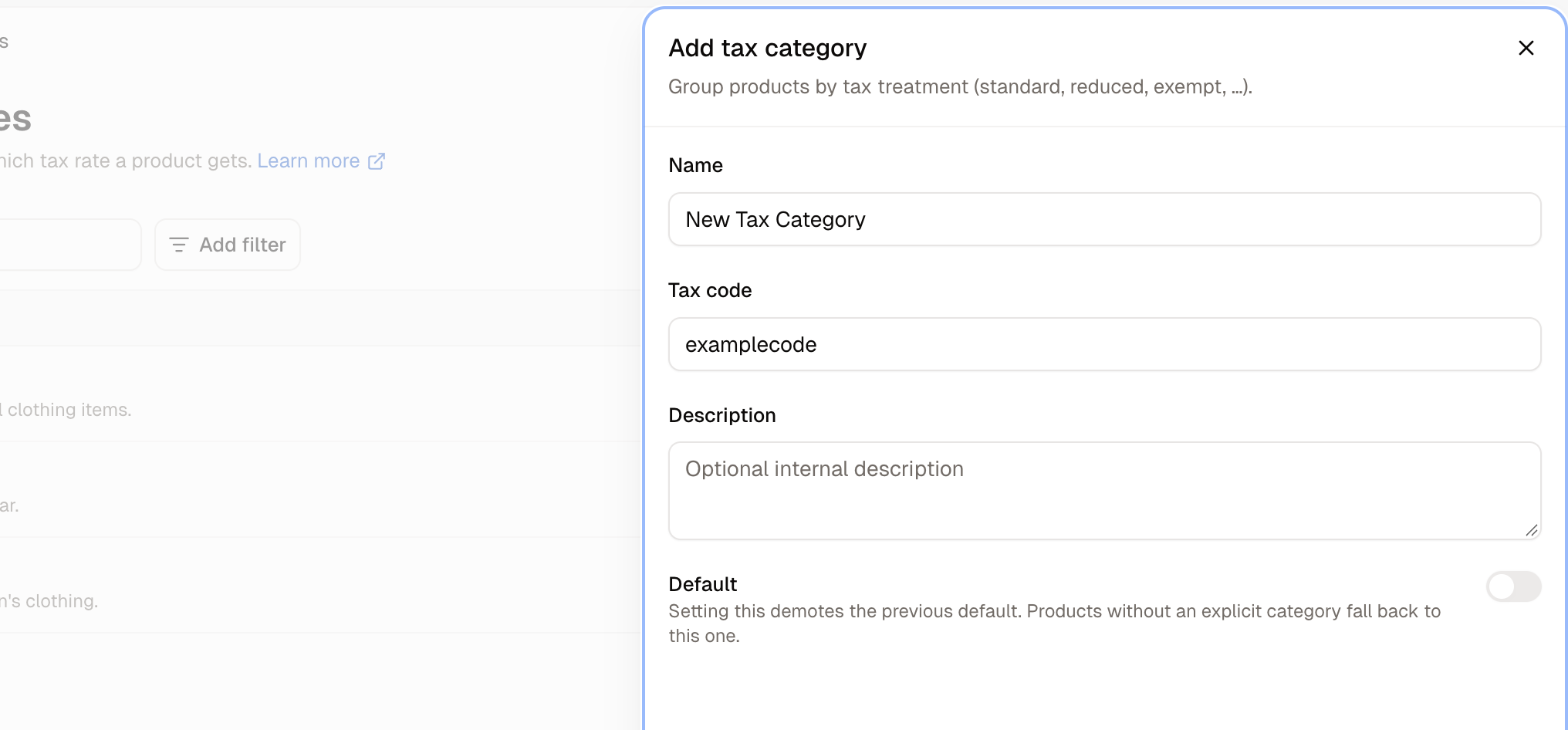 * **Name** - Name it after the tax treatment rather than the product type, such as Reduced rate or Zero rated. The same category usually covers several kinds of goods.
* **Tax code** - Only needed when an external tax provider such as Avalara expects its own code. Leave it blank otherwise.
* **Description** - An optional internal note on what belongs in this category. Worth filling in, because "Reduced Rate" means different things in different countries.
* **Default** - Products with no category of their own fall back to this one.
Click **Create tax category**.
Setting **Default** demotes whichever category held it before. Only one category can be the default, and the switch does not warn you which one it is replacing.
A tax category charges nothing on its own. Until a tax rate names it, products carrying it are taxed at nothing. Create the category here, then give it a rate on the [Tax Rates](/docs/user/settings/tax-rates) screen.
## How a Tax Category is Assigned
Categories are assigned on the product and on the variant within the product editor. When Spree works out the tax on a line item, it takes the first of these it finds:
1. **The variant's own tax category**, if it has one.
2. **The product's tax category**, if the variant has none.
3. **The store's default category**, if neither has one.
A product's category is therefore the default for all of its variants, and you only set one on a variant where it needs to differ from the rest.
A product whose variants are taxed differently does not need splitting into separate products. Set the product's category to whatever most variants need, then override it on the ones that differ.
## How to Edit a Tax Category
Open the row menu and choose **Edit**. Renaming a category is safe, because products and rates point at the category itself rather than its name.
## How to Delete a Tax Category
Open the row menu and choose **Delete**.
Deleting a category moves its goods onto a fallback. A variant falls back to its product's category, and a product without one falls back to the store's default. Check that the fallback has a rate covering everywhere you sell before deleting, because goods landing on a category with no applicable rate will be taxed nothing.
## Further Reading
* [Tax Rates](/docs/user/settings/tax-rates) - Giving a category an actual percentage
* [Markets](/docs/user/settings/markets) - The regions your rates apply in
* [Create a Product](/docs/user/products/creating-products) - Where a product's tax category is set
This documentation is built and hosted on [Mintlify](https://mintlify.com), a developer documentation platform.
* **Name** - Name it after the tax treatment rather than the product type, such as Reduced rate or Zero rated. The same category usually covers several kinds of goods.
* **Tax code** - Only needed when an external tax provider such as Avalara expects its own code. Leave it blank otherwise.
* **Description** - An optional internal note on what belongs in this category. Worth filling in, because "Reduced Rate" means different things in different countries.
* **Default** - Products with no category of their own fall back to this one.
Click **Create tax category**.
Setting **Default** demotes whichever category held it before. Only one category can be the default, and the switch does not warn you which one it is replacing.
A tax category charges nothing on its own. Until a tax rate names it, products carrying it are taxed at nothing. Create the category here, then give it a rate on the [Tax Rates](/docs/user/settings/tax-rates) screen.
## How a Tax Category is Assigned
Categories are assigned on the product and on the variant within the product editor. When Spree works out the tax on a line item, it takes the first of these it finds:
1. **The variant's own tax category**, if it has one.
2. **The product's tax category**, if the variant has none.
3. **The store's default category**, if neither has one.
A product's category is therefore the default for all of its variants, and you only set one on a variant where it needs to differ from the rest.
A product whose variants are taxed differently does not need splitting into separate products. Set the product's category to whatever most variants need, then override it on the ones that differ.
## How to Edit a Tax Category
Open the row menu and choose **Edit**. Renaming a category is safe, because products and rates point at the category itself rather than its name.
## How to Delete a Tax Category
Open the row menu and choose **Delete**.
Deleting a category moves its goods onto a fallback. A variant falls back to its product's category, and a product without one falls back to the store's default. Check that the fallback has a rate covering everywhere you sell before deleting, because goods landing on a category with no applicable rate will be taxed nothing.
## Further Reading
* [Tax Rates](/docs/user/settings/tax-rates) - Giving a category an actual percentage
* [Markets](/docs/user/settings/markets) - The regions your rates apply in
* [Create a Product](/docs/user/products/creating-products) - Where a product's tax category is set
This documentation is built and hosted on [Mintlify](https://mintlify.com), a developer documentation platform.