> ## Documentation Index
> Fetch the complete documentation index at: https://spreecommerce.org/docs/llms.txt
> Use this file to discover all available pages before exploring further.
# Custom Fields
> Learn how to add your own fields to products, orders, customers and other records in Spree Commerce, without writing any code.
Custom fields let you store information Spree does not have a field for. A clothing store needs fabric composition, a food store needs allergens, a supplier-managed catalogue needs an internal margin tier. Rather than waiting on a developer to add a database column, you define the field once and your team fills it in.
A definition says what the field is called, which records carry it, and what kind of value it holds. Once defined, it appears on every matching record for anyone to fill in.
To manage custom fields, navigate to **Settings → Custom fields**, under the **Store** group.
Earlier versions of Spree called these metafields. The dashboard says custom fields throughout.
## Reviewing Your Custom Fields
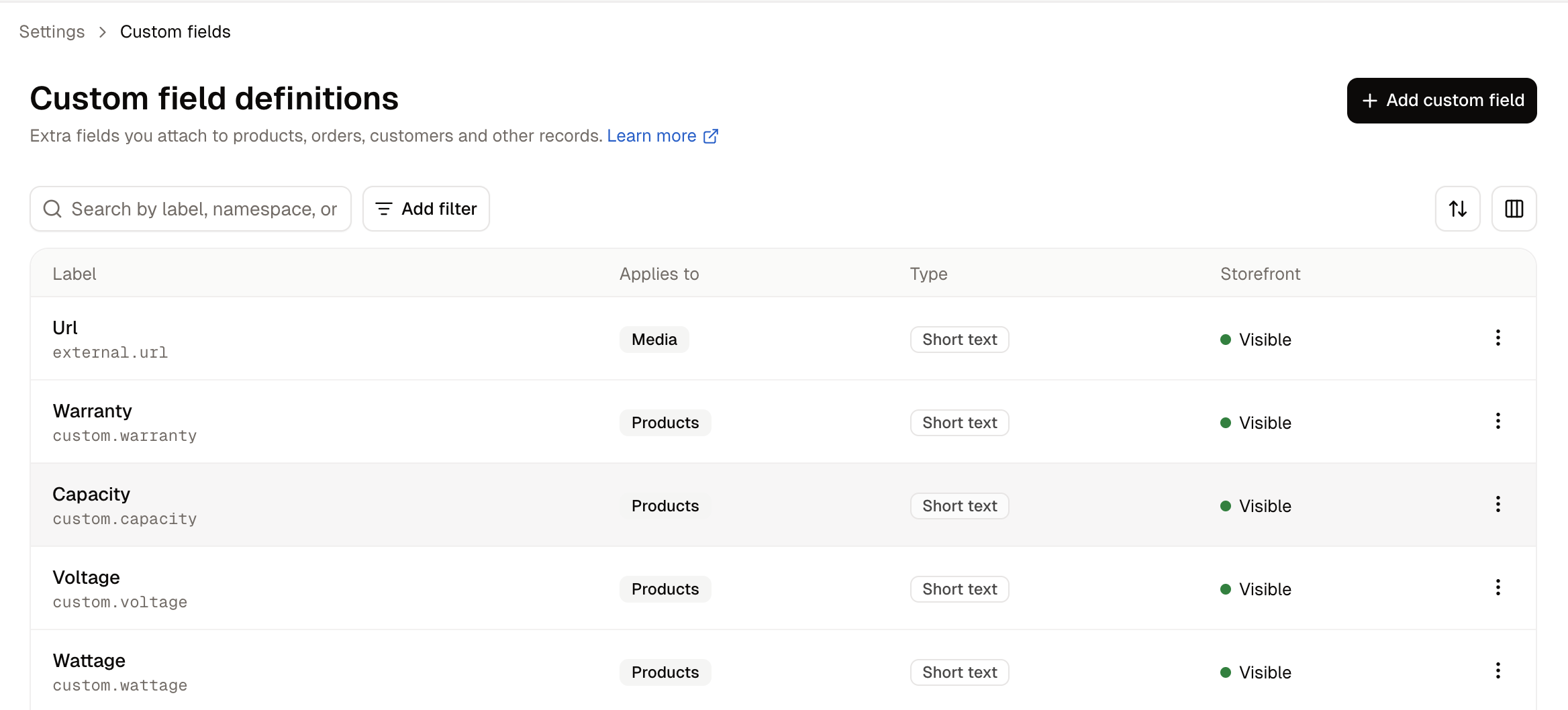 Each row shows:
* **Label** - What the field is called, with its full key beneath, such as `custom.warranty`.
* **Applies to** - Which kind of record carries this field.
* **Type** - What kind of value it holds.
* **Storefront** - Whether shoppers can see the value.
Use the search box to find a definition by label, namespace or key.
## How to Create a Custom Field
Click **Add custom field**.
Each row shows:
* **Label** - What the field is called, with its full key beneath, such as `custom.warranty`.
* **Applies to** - Which kind of record carries this field.
* **Type** - What kind of value it holds.
* **Storefront** - Whether shoppers can see the value.
Use the search box to find a definition by label, namespace or key.
## How to Create a Custom Field
Click **Add custom field**.
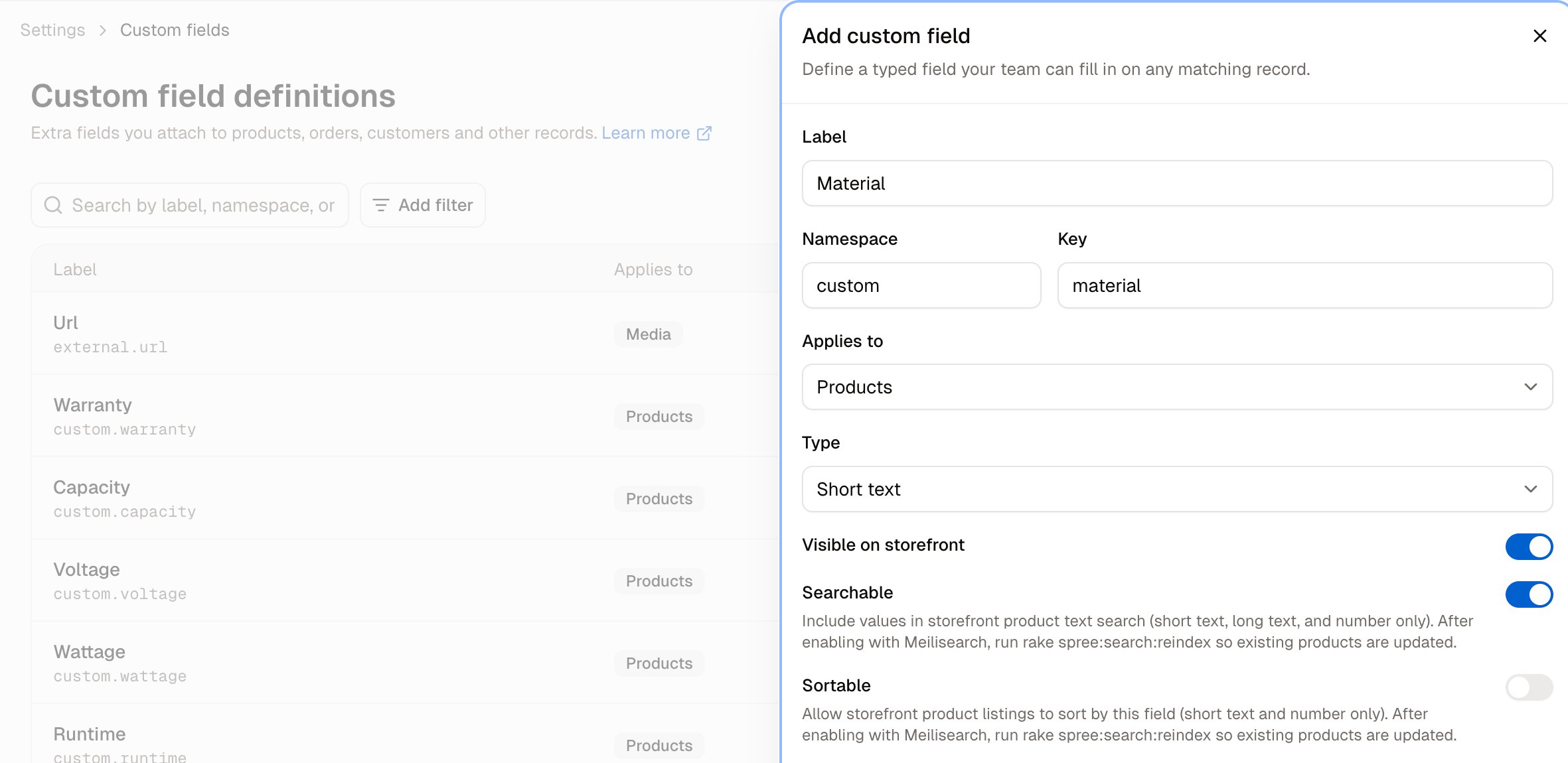 * **Label** - What your team reads on the form, such as `Warranty`.
* **Namespace** - Groups fields and avoids naming collisions. Pre-filled with `custom`, which is right unless you have a reason to separate a set of fields.
* **Key** - A short lower-case identifier, such as `warranty`. The namespace and key together make the full name shown in the list, `custom.warranty`.
* **Applies to** - Which kind of record the field belongs to.
* **Type** - What kind of value it holds. See below.
* **Visible on storefront** - Whether shoppers see the value.
* **Searchable** - Include values in storefront product text search. Short text, long text and number only.
* **Sortable** - Allow storefront listings to sort by this field. Short text and number only.
Click **Create custom field**.
Neither **Applies to** nor **Type** can be changed once values exist for a field. Changing the type would leave stored values misinterpreted, so decide both before your team starts filling it in.
**Searchable** and **Sortable** need a follow-up step. After enabling either one with Meilisearch, somebody has to run a reindex so existing products pick it up. Ask whoever maintains your store to do this, because the switch alone does not update what is already there.
### Choosing a type
| Type | What it holds |
| - | - |
| **Short text** | A single line, such as "100% Organic Cotton" |
| **Long text** | Several lines without formatting, such as care instructions |
| **Rich text** | Formatted content with headings, lists and links |
| **Number** | Any numeric value, such as a rating or a capacity |
| **Boolean** | True or false, such as whether an item is fragile |
| **JSON** | Structured data holding several related values at once |
Pick the narrowest type that fits. A number stored as short text still sorts, but alphabetically rather than numerically, so 10 comes before 9. Switching the type later means starting the field again.
### What can carry a custom field
**Applies to** offers 31 kinds of record, covering most of what your store holds.
| Record | What you might store on it |
| - | - |
| **Addresses** | Delivery instructions, such as a gate code |
| **Categories** | A display badge, such as "New" or "Sustainable" |
| **Claims** | The carrier's own claim reference |
| **Collections** | The campaign or season a collection belongs to |
| **Credit Cards** | A vault token from your payment provider |
| **Customers** | Loyalty tier, or the account manager who looks after them |
| **Delivery Methods** | The carrier's service code |
| **Exchanges** | The tracking reference for the replacement |
| **Fulfillments** | Handling notes, such as fragile or upright |
| **Gift Cards** | The personal message printed on it |
| **Line Items** | Engraving text or personalisation notes |
| **Media** | Copyright holder, or display priority |
| **Newsletter Subscribers** | Where the subscription came from |
| **Option Types** | A longer description of what the option means |
| **Option Values** | The hex code behind a colour swatch |
| **Orders** | An internal comment, or a buyer's purchase order number |
| **Payment Methods** | A risk profile or processor identifier |
| **Payment Sources** | Metadata returned by the payment gateway |
| **Payments** | An external transaction reference |
| **Product Types** | The team responsible for products of this type |
| **Products** | Material, care instructions, sustainability rating |
| **Promotions** | The campaign a promotion belongs to |
| **Refunds** | Detail behind the refund reason |
| **Returns** | Detail behind the return reason |
| **Sellers** | A seller's profile details or onboarding notes |
| **Stock Levels** | The bin location within a warehouse |
| **Stock Transfers** | A batch identifier or receiving note |
| **Store Credits** | Restrictions on what the credit can be spent on |
| **Stores** | A store tagline or branding detail |
| **Tax Rates** | A compliance classification |
| **Variants** | A spec sheet address, or detailed sizing |
## How to Fill In a Custom Field
Open the record the field applies to. Products carry a **Custom fields** card showing every definition that applies to them.
* **Label** - What your team reads on the form, such as `Warranty`.
* **Namespace** - Groups fields and avoids naming collisions. Pre-filled with `custom`, which is right unless you have a reason to separate a set of fields.
* **Key** - A short lower-case identifier, such as `warranty`. The namespace and key together make the full name shown in the list, `custom.warranty`.
* **Applies to** - Which kind of record the field belongs to.
* **Type** - What kind of value it holds. See below.
* **Visible on storefront** - Whether shoppers see the value.
* **Searchable** - Include values in storefront product text search. Short text, long text and number only.
* **Sortable** - Allow storefront listings to sort by this field. Short text and number only.
Click **Create custom field**.
Neither **Applies to** nor **Type** can be changed once values exist for a field. Changing the type would leave stored values misinterpreted, so decide both before your team starts filling it in.
**Searchable** and **Sortable** need a follow-up step. After enabling either one with Meilisearch, somebody has to run a reindex so existing products pick it up. Ask whoever maintains your store to do this, because the switch alone does not update what is already there.
### Choosing a type
| Type | What it holds |
| - | - |
| **Short text** | A single line, such as "100% Organic Cotton" |
| **Long text** | Several lines without formatting, such as care instructions |
| **Rich text** | Formatted content with headings, lists and links |
| **Number** | Any numeric value, such as a rating or a capacity |
| **Boolean** | True or false, such as whether an item is fragile |
| **JSON** | Structured data holding several related values at once |
Pick the narrowest type that fits. A number stored as short text still sorts, but alphabetically rather than numerically, so 10 comes before 9. Switching the type later means starting the field again.
### What can carry a custom field
**Applies to** offers 31 kinds of record, covering most of what your store holds.
| Record | What you might store on it |
| - | - |
| **Addresses** | Delivery instructions, such as a gate code |
| **Categories** | A display badge, such as "New" or "Sustainable" |
| **Claims** | The carrier's own claim reference |
| **Collections** | The campaign or season a collection belongs to |
| **Credit Cards** | A vault token from your payment provider |
| **Customers** | Loyalty tier, or the account manager who looks after them |
| **Delivery Methods** | The carrier's service code |
| **Exchanges** | The tracking reference for the replacement |
| **Fulfillments** | Handling notes, such as fragile or upright |
| **Gift Cards** | The personal message printed on it |
| **Line Items** | Engraving text or personalisation notes |
| **Media** | Copyright holder, or display priority |
| **Newsletter Subscribers** | Where the subscription came from |
| **Option Types** | A longer description of what the option means |
| **Option Values** | The hex code behind a colour swatch |
| **Orders** | An internal comment, or a buyer's purchase order number |
| **Payment Methods** | A risk profile or processor identifier |
| **Payment Sources** | Metadata returned by the payment gateway |
| **Payments** | An external transaction reference |
| **Product Types** | The team responsible for products of this type |
| **Products** | Material, care instructions, sustainability rating |
| **Promotions** | The campaign a promotion belongs to |
| **Refunds** | Detail behind the refund reason |
| **Returns** | Detail behind the return reason |
| **Sellers** | A seller's profile details or onboarding notes |
| **Stock Levels** | The bin location within a warehouse |
| **Stock Transfers** | A batch identifier or receiving note |
| **Store Credits** | Restrictions on what the credit can be spent on |
| **Stores** | A store tagline or branding detail |
| **Tax Rates** | A compliance classification |
| **Variants** | A spec sheet address, or detailed sizing |
## How to Fill In a Custom Field
Open the record the field applies to. Products carry a **Custom fields** card showing every definition that applies to them.
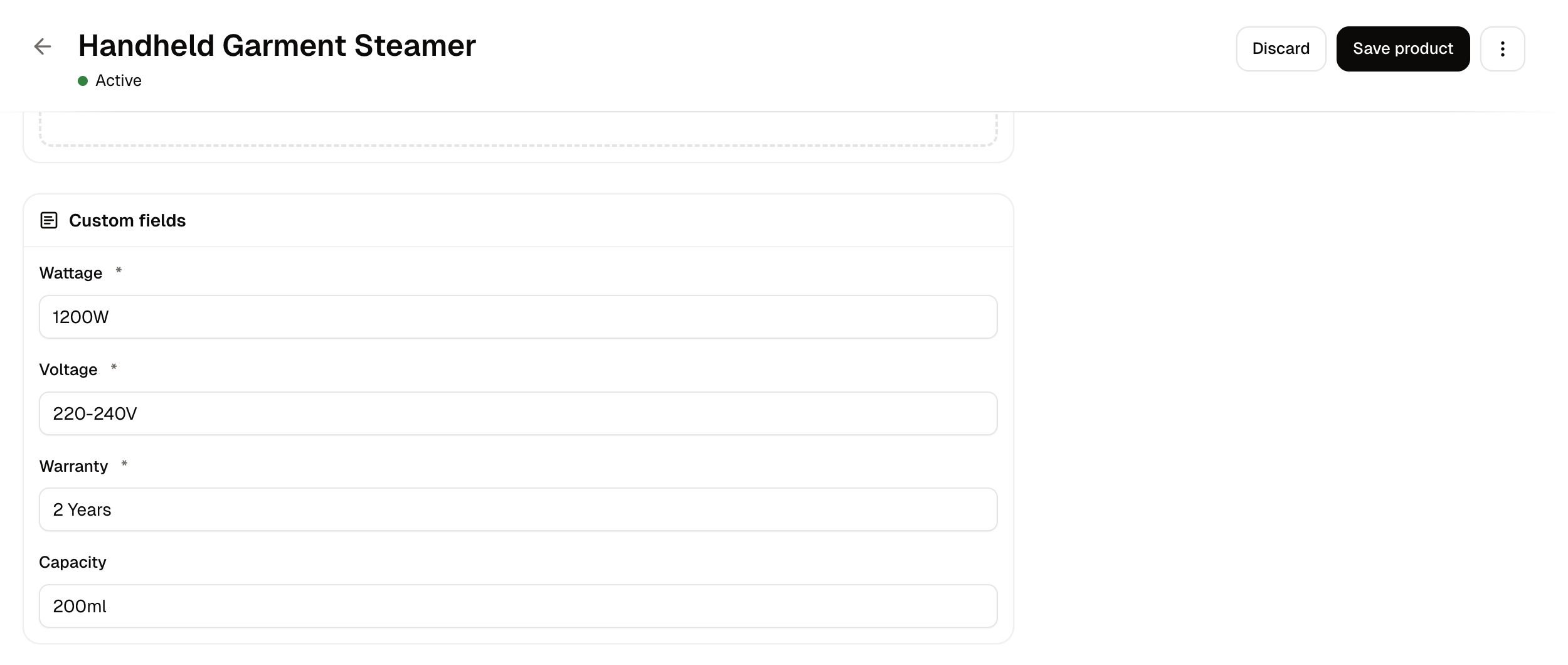 Enter the values and save the record.
To have a field appear on a product automatically, add it to a [product type](/docs/user/settings/product-types). Products carrying that type then show the field without anyone assigning it.
### Filling them in bulk
Product custom fields can be set through the product CSV. Add a column named `custom_field..`, such as `custom_field.custom.material`, and fill in a value for each product row.
The import template generated for your store already ends with one column per custom field you have defined for products, so you may not need to add the columns by hand.
The column prefix is `custom_field.`. A file using the older `metafield.` prefix imports without its custom field values rather than failing, so the import looks successful and the values are silently missing.
## How to Edit a Custom Field
Open the row menu and choose **Edit**. You can change the **Label**, the **Key** and the storefront switches at any time.
**Applies to** and **Type** are fixed once values exist.
## How to Delete a Custom Field
Open the row menu and choose **Delete**.
Deleting a definition removes the values stored against it on every record. Export anything you need first, because there is no way to recover them afterwards.
## Further Reading
* [Product Types](/docs/user/settings/product-types) - Making a field appear on a product automatically
* [Custom Product Fields](/docs/user/manage-products/custom-product-fields) - Using custom fields on products specifically
* [Import Products](/docs/user/manage-products/import-products) - Setting values in bulk
This documentation is built and hosted on [Mintlify](https://mintlify.com), a developer documentation platform.
Enter the values and save the record.
To have a field appear on a product automatically, add it to a [product type](/docs/user/settings/product-types). Products carrying that type then show the field without anyone assigning it.
### Filling them in bulk
Product custom fields can be set through the product CSV. Add a column named `custom_field..`, such as `custom_field.custom.material`, and fill in a value for each product row.
The import template generated for your store already ends with one column per custom field you have defined for products, so you may not need to add the columns by hand.
The column prefix is `custom_field.`. A file using the older `metafield.` prefix imports without its custom field values rather than failing, so the import looks successful and the values are silently missing.
## How to Edit a Custom Field
Open the row menu and choose **Edit**. You can change the **Label**, the **Key** and the storefront switches at any time.
**Applies to** and **Type** are fixed once values exist.
## How to Delete a Custom Field
Open the row menu and choose **Delete**.
Deleting a definition removes the values stored against it on every record. Export anything you need first, because there is no way to recover them afterwards.
## Further Reading
* [Product Types](/docs/user/settings/product-types) - Making a field appear on a product automatically
* [Custom Product Fields](/docs/user/manage-products/custom-product-fields) - Using custom fields on products specifically
* [Import Products](/docs/user/manage-products/import-products) - Setting values in bulk
This documentation is built and hosted on [Mintlify](https://mintlify.com), a developer documentation platform.