> ## Documentation Index
> Fetch the complete documentation index at: https://spreecommerce.org/docs/llms.txt
> Use this file to discover all available pages before exploring further.
# Inventory
> Learn how to read your stock figures, correct a count, and bring new stock in, in Spree Commerce.
The Inventory page answers the question every merchant asks first: what do I have, where is it, and how much of it can I still sell? It lists one row per variant per stock location, so a product held in two warehouses appears twice, each row carrying its own figures.
Besides products and orders, this is one of the screens your team will reference most often. It is where you check whether something is genuinely available before promising it to a customer, where you correct a count that does not match what is on the shelf, and where you can see if stock is already on its way before deciding to reorder.
Inventory shows you the current picture, but most of what changes it happens somewhere else. Stock arrives from suppliers on a [purchase order](/docs/user/inventory/purchase-orders), moves between your own warehouses on a [stock transfer](/docs/user/inventory/stock-transfers), and leaves as customer orders ship. What you can do from this page is correct a count, and start either of those documents from the row that needs the stock.
To review your stock, navigate to **Inventory** in the admin dashboard.
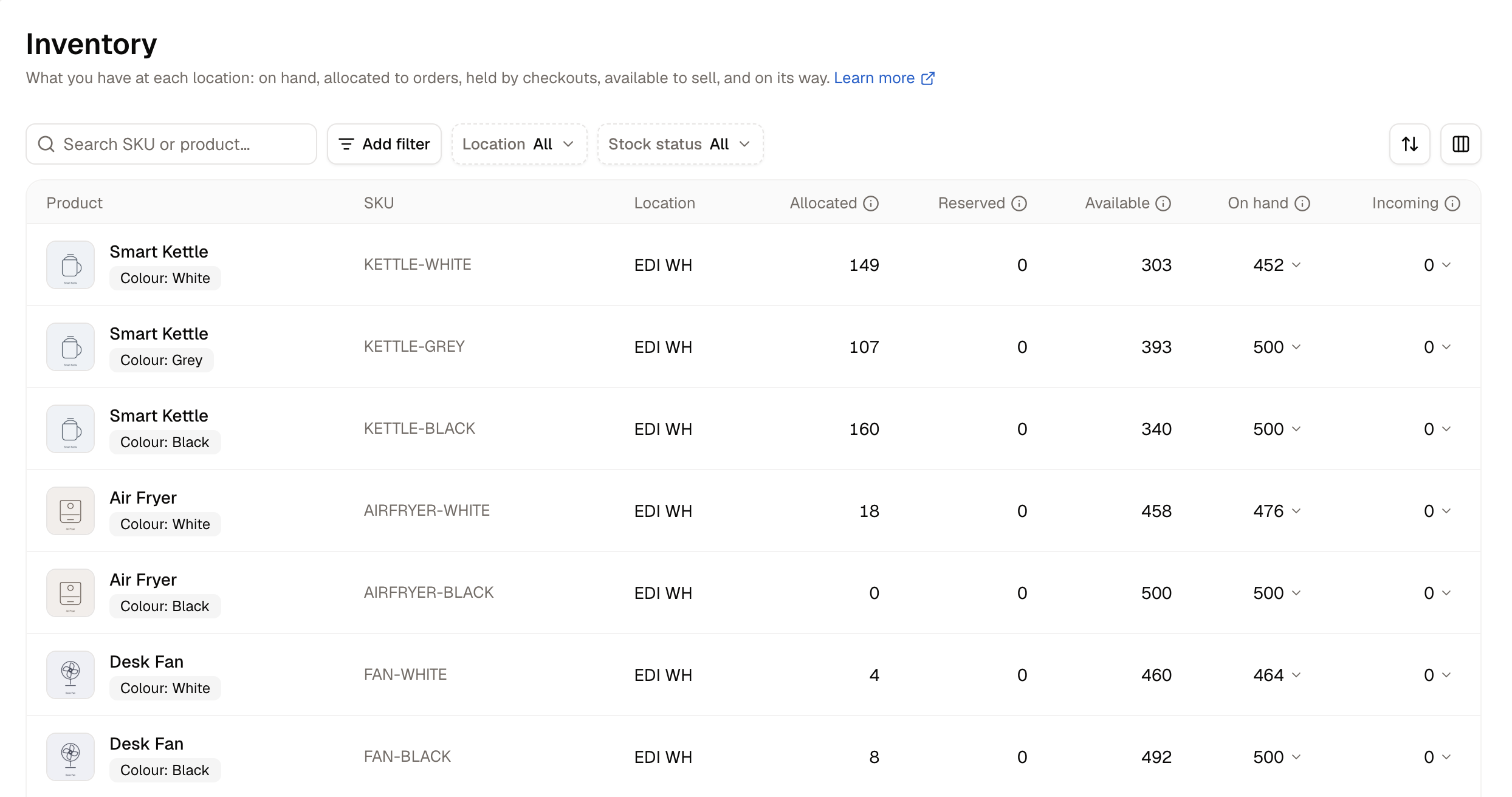 The five figures look alike but mean very different things:
| Column | What it means |
| - | - |
| **On hand** | Units physically on the shelf at that location |
| **Allocated** | Units promised to orders that have been placed but not yet shipped. They are still on the shelf |
| **Reserved** | Units held by customers who are in checkout right now |
| **Available** | On hand, minus allocated, minus reserved: what a new customer can still buy |
| **Incoming** | Units on their way here on a purchase order, or a transfer in transit |
Placing an order does not reduce **On hand**. The units stay on the shelf and move into **Allocated** until the parcel actually ships, so a warehouse worker counting boxes should always find the number Spree shows.
## How to Find a Product
The list opens on every location at once. To narrow it down:
* Use the **Location** filter to show a single warehouse.
* Use the search box to find a product by name or SKU.
* Use the **Stock status** filter for **In stock**, **Low stock**, **Out of stock**, **Reserved** or **Incoming**.
Rows are created for you. A variant appears here as soon as it is stocked at a location, and a product that has never been stocked at a warehouse still shows up there once something is on its way to it.
## How to Correct a Count
After a stocktake, you can correct a figure in place rather than opening the product.
1. Click the **On hand** figure.
2. Choose how to change it:
* **Set to** - enter the number you counted
* **Adjust by** - add or subtract units
3. Enter the amount.
4. Pick a **Reason**:
* Correction
* Count
* Damaged
* Promotion or donation
* Received
* Return restock
* Theft or loss
5. Click **Apply**.
The five figures look alike but mean very different things:
| Column | What it means |
| - | - |
| **On hand** | Units physically on the shelf at that location |
| **Allocated** | Units promised to orders that have been placed but not yet shipped. They are still on the shelf |
| **Reserved** | Units held by customers who are in checkout right now |
| **Available** | On hand, minus allocated, minus reserved: what a new customer can still buy |
| **Incoming** | Units on their way here on a purchase order, or a transfer in transit |
Placing an order does not reduce **On hand**. The units stay on the shelf and move into **Allocated** until the parcel actually ships, so a warehouse worker counting boxes should always find the number Spree shows.
## How to Find a Product
The list opens on every location at once. To narrow it down:
* Use the **Location** filter to show a single warehouse.
* Use the search box to find a product by name or SKU.
* Use the **Stock status** filter for **In stock**, **Low stock**, **Out of stock**, **Reserved** or **Incoming**.
Rows are created for you. A variant appears here as soon as it is stocked at a location, and a product that has never been stocked at a warehouse still shows up there once something is on its way to it.
## How to Correct a Count
After a stocktake, you can correct a figure in place rather than opening the product.
1. Click the **On hand** figure.
2. Choose how to change it:
* **Set to** - enter the number you counted
* **Adjust by** - add or subtract units
3. Enter the amount.
4. Pick a **Reason**:
* Correction
* Count
* Damaged
* Promotion or donation
* Received
* Return restock
* Theft or loss
5. Click **Apply**.
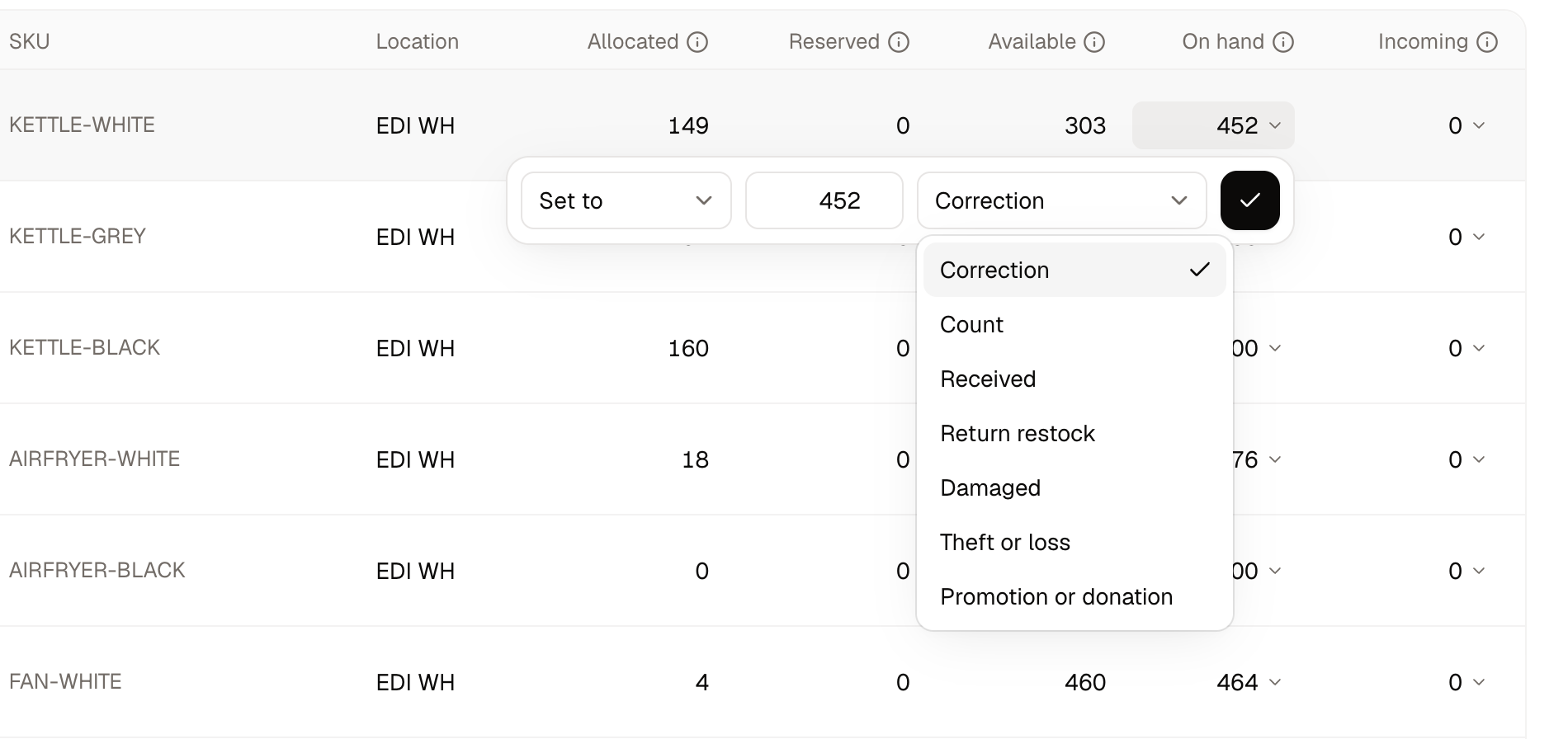 The change is recorded in the product's stock history with the reason you chose, alongside every other movement on that shelf.
A correction is for stock you have counted. Goods arriving from a supplier belong on a [purchase order](/docs/user/inventory/purchase-orders), and stock moving between your own warehouses belongs on a [stock transfer](/docs/user/inventory/stock-transfers). Otherwise the delivery is never recorded and your **Incoming** figure goes wrong.
## How to Bring Stock In
Click the **Incoming** figure on any row for a shortcut to either route:
* **Create transfer** - The stock is coming from another of your own warehouses.
* **Create purchase order** - You are buying the stock from a supplier.
The **Incoming** figure does not move while the document is still a draft. A purchase order counts once you mark it ordered, and a transfer once it is in transit. The figure comes back down as goods are received, or when the document is closed short, cancelled, or put back to draft.
Only **On hand** and **Incoming** can be clicked. The other three figures are calculated for you and cannot be edited directly.
## Removing Stock Rows
Stock rows cannot be deleted. A row exists because a variant is stocked at a location, so the way to remove one is to stop stocking that variant there. The row and its history are kept either way, because the movements behind the figures are part of your inventory record.
## Further Reading
* [Stock Transfers](/docs/user/inventory/stock-transfers) - Moving stock between your own warehouses
* [Purchase Orders](/docs/user/inventory/purchase-orders) - Ordering stock from a supplier
* [Stock Locations](/docs/user/settings/locations) - The warehouses and pickup points that hold stock
This documentation is built and hosted on [Mintlify](https://mintlify.com), a developer documentation platform.
The change is recorded in the product's stock history with the reason you chose, alongside every other movement on that shelf.
A correction is for stock you have counted. Goods arriving from a supplier belong on a [purchase order](/docs/user/inventory/purchase-orders), and stock moving between your own warehouses belongs on a [stock transfer](/docs/user/inventory/stock-transfers). Otherwise the delivery is never recorded and your **Incoming** figure goes wrong.
## How to Bring Stock In
Click the **Incoming** figure on any row for a shortcut to either route:
* **Create transfer** - The stock is coming from another of your own warehouses.
* **Create purchase order** - You are buying the stock from a supplier.
The **Incoming** figure does not move while the document is still a draft. A purchase order counts once you mark it ordered, and a transfer once it is in transit. The figure comes back down as goods are received, or when the document is closed short, cancelled, or put back to draft.
Only **On hand** and **Incoming** can be clicked. The other three figures are calculated for you and cannot be edited directly.
## Removing Stock Rows
Stock rows cannot be deleted. A row exists because a variant is stocked at a location, so the way to remove one is to stop stocking that variant there. The row and its history are kept either way, because the movements behind the figures are part of your inventory record.
## Further Reading
* [Stock Transfers](/docs/user/inventory/stock-transfers) - Moving stock between your own warehouses
* [Purchase Orders](/docs/user/inventory/purchase-orders) - Ordering stock from a supplier
* [Stock Locations](/docs/user/settings/locations) - The warehouses and pickup points that hold stock
This documentation is built and hosted on [Mintlify](https://mintlify.com), a developer documentation platform.